How to Make a Swimlane Diagram in Visio (Cross-Functional Flowchart)
A swimlane diagram shows not just what happens, but who does it. Learn how to build a cross-functional flowchart in Visio: add the lanes, name them, and put each step in the lane of the person or team that does it.
Step by step
Intro
- Swimlane diagrams. A normal flowchart shows what happens. A swimlane diagram also shows who does each step. Here we build one for a simple order process.
Intro
- Cross-Functional Flowchart. In the Shapes pane, open the Cross-Functional Flowchart shapes for the lanes and the Basic Flowchart shapes for the steps.
Add the lanes
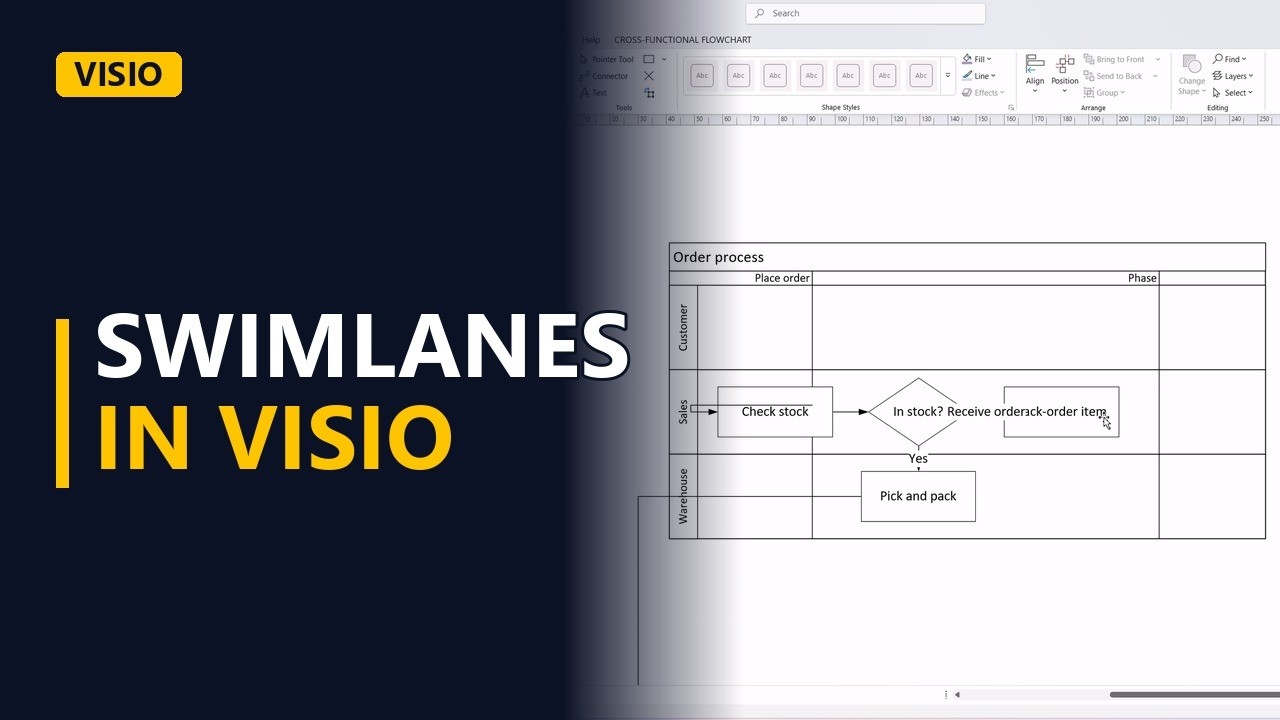
- Add the lanes. Drag a Swimlane shape onto the page. Visio builds the whole frame for you, with a title bar on top. Name the title Order process and the first lane Customer.
Add the lanes
- Add the lanes. Drag another Swimlane under it. It snaps into the frame. Name it Sales. Add one more lane the same way and name it Warehouse.
Put steps in lanes
- Steps go in lanes. Each step goes in the lane of whoever does it. Drop a Start/End shape in the Customer lane and type Place order. Drop a Process shape in the Sales lane and type Check stock. Connect Place order to Check stock. The line crosses from one lane to the next, so you can see the work being handed over.
The decision
- The decision. Sales decides if the item is in stock. Drop a Decision shape in the Sales lane and type In stock? Connect Check stock to In stock?
Hand-offs
- Hand-offs. If the item is in stock, the warehouse picks and packs it. Drop a Process shape in the Warehouse lane and type Pick and pack. Connect In stock? down to Pick and pack, then select the line and type Yes to label it. If it isn't in stock, Sales back-orders it. Drop a Process shape in the Sales lane and type Back-order item. Connect In stock? to Back-order item and label that line No.
Finish the flow
- The end. Finally, the customer receives the order. Drop a Start/End shape back in the Customer lane and type Receive order. Connect Pick and pack to Receive order.
- Done. Click an empty part of the page to clear the selection, then read the diagram lane by lane to check who does what.
Why lanes help
- Why lanes help. Swimlanes make hand-offs easy to see. Each time a line crosses into another lane, the work moves to someone else, and that's where delays and mistakes often happen.
Common mistakes
- Steps that sit on a lane border. If a shape is only half inside a lane, it may not belong to that lane, so it gets left behind when you move or resize the lane. Drop each step fully inside its lane.
- Drawing lanes with plain rectangles. Rectangles don't snap together, and they don't hold the steps or resize as one frame. Use the Swimlane shape from the Cross-Functional Flowchart shapes.
- Unlabelled decision lines. A diamond with two unlabelled lines doesn't tell the reader which path is which. Select each line coming out of In stock? and type Yes or No.
- Naming lanes after people instead of roles. A lane called Sarah goes out of date as soon as Sarah changes jobs. Use the role or team, like Sales or Warehouse, so the diagram stays true.
When a business analyst uses this
In a current-state process mapping workshop, put one lane on the screen for each team in the room and place each step as people describe it. Every line that crosses a lane is a hand-off, so you can ask each team what they get, from whom, and where it gets stuck.
Questions people ask
What is a swimlane in Visio?
A swimlane is one band in a Cross-Functional Flowchart that stands for a person, team or department. Each step you put inside the lane is done by that role.
How do I add a swimlane in Visio?
Drag another Swimlane shape from the Cross-Functional Flowchart shapes onto the existing frame. It snaps into place, and you type the new lane's name in its label.
How do I make a swimlane flowchart in Visio?
Open the Cross-Functional Flowchart and Basic Flowchart shapes, and drag in one Swimlane for each role. Then drop Start/End, Process and Decision shapes into the right lanes and connect them in order.