How to Make a Basic Flowchart in Visio (Step by Step)
Learn how to make a clean, basic flowchart in Microsoft Visio, step by step. We map a simple leave request process with a start, process steps, a yes/no decision and an end. You will also see the step most people forget: labelling every line that leaves a decision.
Step by step
Intro
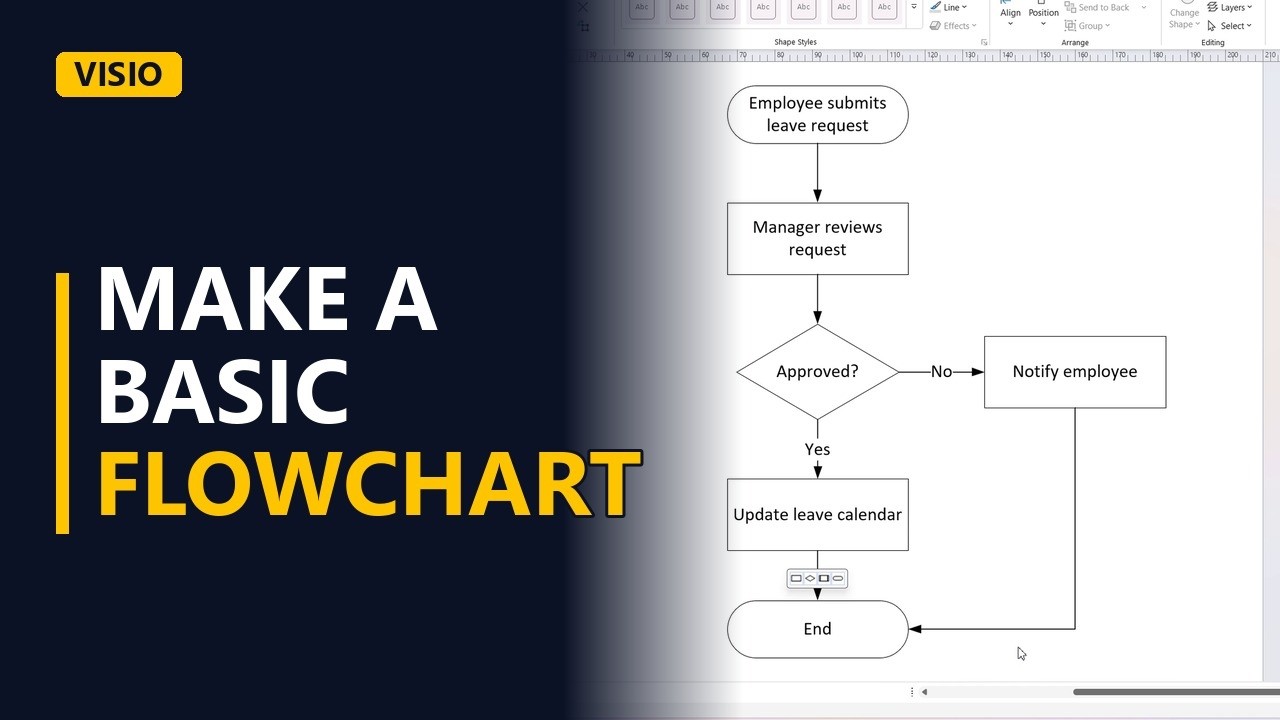
- Basic flowchart in Visio. A basic flowchart shows a process as shapes joined by arrows. Here we map a simple leave request with a start, process steps, a yes/no decision and an end.
- The Shapes pane. Open a blank drawing with the Basic Flowchart Shapes stencil. Every shape you need is in the Shapes pane on the left.
Start and first step
- Add a start. Drag a Start/End shape onto the page and start typing to name it: Employee submits leave request. Every flowchart needs one clear starting point.
- Add a process. Drag a Process shape below it and name it Manager reviews request. A Process shape is one action, so start its name with a verb.
- Connect shapes. Connect the two shapes. Visio's auto connect draws the arrow for you, and the arrow stays glued to both shapes when you move them.
Add a decision
- Add a decision. The manager has to make a choice, so drag a Decision shape (the diamond) below and write it as a yes/no question: Approved? Then connect Manager reviews request to the decision.
Yes and No paths
- The Yes path. If the answer is yes, the leave goes into the team calendar. Drop another Process shape straight below the diamond and name it Update leave calendar.
- Label the line. Connect the decision to it, then label the line Yes. This is the step most people forget. Without the label, readers have to guess which way the decision went.
- The No path. If the answer is no, the employee is told why. Drop a Process shape named Notify employee off to the side, so the main path stays straight down the page.
- Label the line. Connect the decision to Notify employee and label this line No.
End every path
- Add an end. Drop one more Start/End shape at the bottom and name it End. Every flowchart needs a clear ending.
- Close every path. Connect Update leave calendar to End. Then connect Notify employee to End as well, so every route through the process finishes somewhere.
- Done. Click an empty part of the page to deselect everything and see the finished diagram.
3 rules
- 3 rules to remember. 3 rules to remember: one start, one end, and a label on every line that leaves a decision.
Common mistakes
- Unlabelled lines leaving a decision. If the 2 lines out of Approved? have no labels, readers can't tell which path is which. Select each line and type Yes or No.
- A decision that isn't a yes/no question. Text like Manager decision doesn't say what is being decided. Write the diamond as a question with a yes or no answer, such as Approved?
- Paths that stop in the middle of the page. A No path that ends at Notify employee leaves the process unfinished. Connect every path to the same End shape.
- Process shapes named with nouns. A box called Calendar doesn't say what happens. Name each Process shape as one action that starts with a verb, like Update leave calendar.
When a business analyst uses this
In a requirements workshop, a business analyst maps the current leave approval process live on screen. Labelled Yes and No paths that all reach one End let the business owner check every route before sign-off. Gaps, like a missing step for telling the employee about a rejection, show up early.
Questions people ask
How do I make a process flowchart in Visio?
Start with the Basic Flowchart Shapes stencil. Use a Start/End shape for the start, a Process shape for each action and a Decision diamond for each yes/no choice. Then connect them in order to one End shape.
What is a simple example of a basic Visio flowchart?
A leave request. Employee submits leave request leads to Manager reviews request, then the decision Approved?. Yes goes to Update leave calendar and No goes to Notify employee, and both paths finish at End.
How do I make a flowchart step by step?
Add a start, then one Process shape for each action and a Decision shape for each yes/no choice. Connect everything in order, label the lines that leave each decision, and finish every path at an end.