How to Make an ER Diagram in Visio (Crow's Foot Notation)
An entity relationship diagram shows the things a system stores data about and how they relate. Learn crow's foot notation and draw a customer, order and payment ER diagram in Visio, step by step.
Step by step
Intro
- ER diagram in Visio. An ER (entity relationship) diagram shows what a system keeps data about and how those things relate. Here we draw one in Visio with crow's foot notation, for a simple online shop.
- Crow's Foot stencil. Open the Crow's Foot Database Notation stencil in the Shapes pane. You only need two of its shapes: the entity and the relationship.
Entities
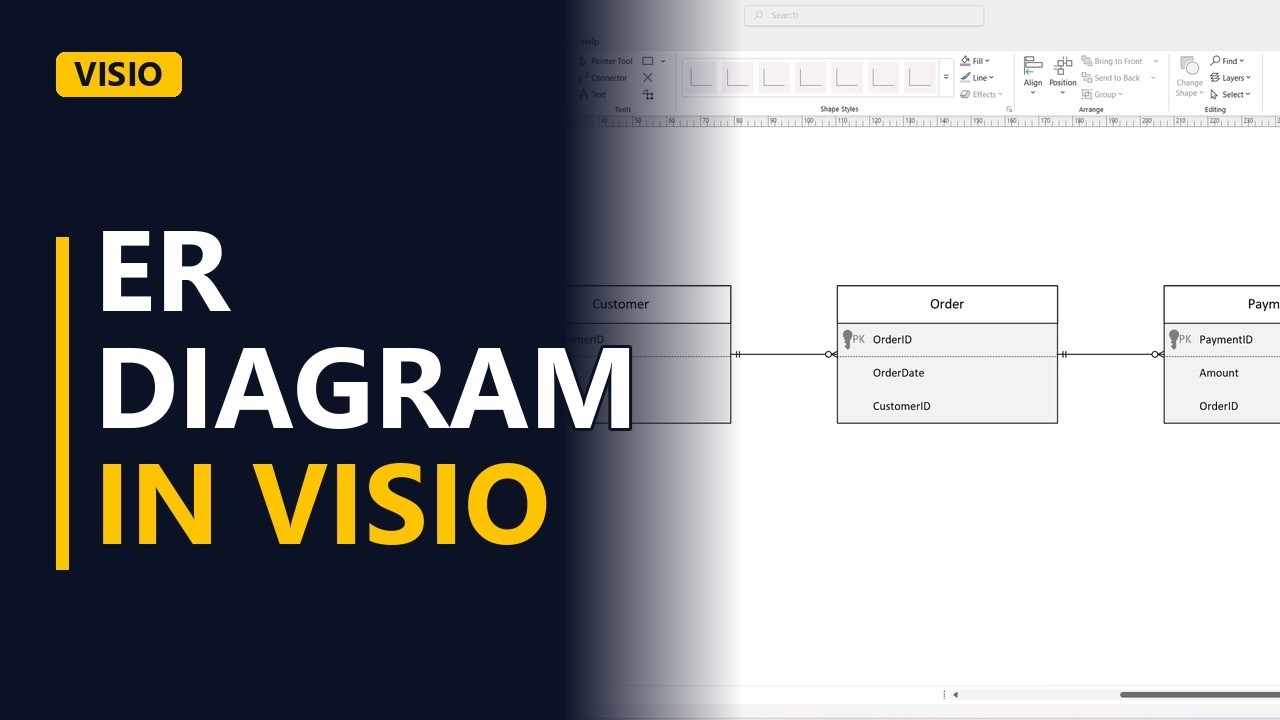
- Entity. An entity is a thing you store data about. Drop an entity on the page and name it Customer, with the fields CustomerID, Name and Email. The first row, CustomerID, is the primary key: the field that makes each customer unique. Add a second entity named Order, with OrderID, OrderDate and CustomerID. OrderID is its own key, and CustomerID records which customer the order belongs to.
Relationships
- Relationship. Connect Customer to Order with a relationship, then read it out loud: one customer places zero or many orders.
- Reading crow's foot. The two short bars on the Customer end mean one and only one. The circle and the crow's foot on the Order end mean zero or many. That is all there is to crow's foot notation.
A third entity
- A third entity. Customers pay for their orders, so add a Payment entity with PaymentID, Amount and OrderID. OrderID links each payment to the order it belongs to.
- Relationship. Connect Order to Payment with another relationship. One order has zero or many payments, for example a deposit and a final payment.
- Done. Click an empty part of the page to see the finished diagram: Customer linked to Order, and Order linked to Payment.
3 ER rules
- 3 ER rules. 3 rules: name entities with singular nouns (Customer, not Customers), give every entity a primary key, and read each relationship out loud in both directions to check it makes sense.
Common mistakes
- The crow's foot on the wrong end. The crow's foot goes on the 'many' side. One customer places many orders, so it sits on the Order end, not the Customer end.
- Plural entity names. Name the entity Customer, not Customers. An entity describes one thing, and the crow's foot already shows there can be many.
- No linking field in the related entity. A line on the page isn't enough. Order needs a CustomerID field and Payment needs an OrderID field, or the data can't show which customer or order a row belongs to.
- Reading the relationship in one direction only. Check both ways: one customer places zero or many orders, and each order belongs to one and only one customer. If either sentence sounds wrong, fix the end symbols.
When a business analyst uses this
In a requirements workshop for a new ordering system, a business analyst puts the Customer, Order and Payment diagram on screen and reads each line out loud, such as 'one order has zero or many payments'. Stakeholders confirm or correct rules like split payments before the data requirements are signed off.
Questions people ask
How do you make an ER diagram in Visio?
Open the Crow's Foot Database Notation stencil and add an Entity shape for each thing you store data about, with its primary key in the first row. Then connect the entities with Relationship shapes.
How do you edit a Visio diagram in Word?
Copy the diagram in Visio and paste it into Word, where it goes in as a Visio object. Double-click it to edit it. This only works on a computer that has Visio installed.
Can you draw an ER diagram in Word?
Only by hand. Word has no crow's foot stencil, so you would have to build every entity and end symbol from basic shapes and lines. It's quicker to draw the diagram in Visio and paste it into Word.