How to Draw a Context Diagram in Visio (DFD Level 0)
A context diagram is the one-page picture of a system and everything it talks to. Learn how to draw a level 0 data flow diagram in Visio for an online shop, step by step.
Step by step
Intro
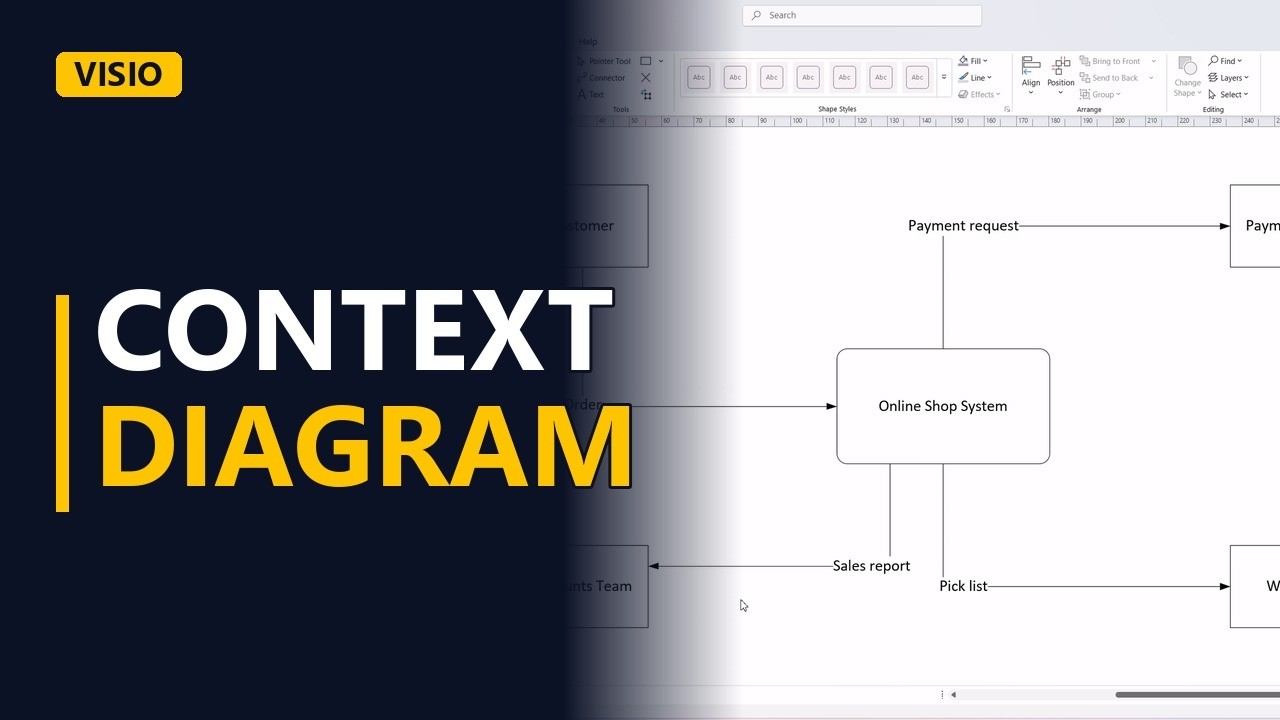
- Context diagram. A context diagram is the best one page scope picture a business analyst can draw. One box for the system, and everything it talks to around it. Let's draw one in Visio.
- Gane-Sarson stencil. I'm using the Gane Sarson stencil again. A context diagram is just a data flow diagram with only one process.
The system
- The system. Put the whole system in the middle as one single process. Don't split it up. That's the point of level zero.
Entities and data flows
- External entities. Now everything outside the system that sends or receives data. Start with the customer.
- Data flows. Connect the customer to the system, and label the data. The customer sends an order.
- External entities. The system asks a payment provider to take the money.
- Data flows. Connect it, and label the flow payment request.
- External entities. The warehouse needs to know what to pack.
- Data flows. So the system sends it a pick list.
- External entities. And the accounts team gets a daily sales report.
- Data flows. Connect it, and label it sales report.
- Done. Click away, and that's the whole scope on one page.
Why BAs love it
- Why BAs love it. Show this to stakeholders early. If someone says, wait, what about the courier, you just found a missing interface before anyone wrote a line of code.