BPMN Sub-Process in Visio: Hide the Detail, Keep the Big Picture
When one step of a BPMN process is a whole process on its own, use a collapsed sub-process. Learn what the plus marker means and when to use it, with an employee onboarding process in Visio.
Step by step
- BPMN sub-process. Some steps in a process are really a whole process of their own. Put all that detail on one page and nobody can read it. BPMN fixes this with a sub-process. Let's use one in Visio.
- BPMN Shapes stencil. I'm using the BPMN Shapes stencil.
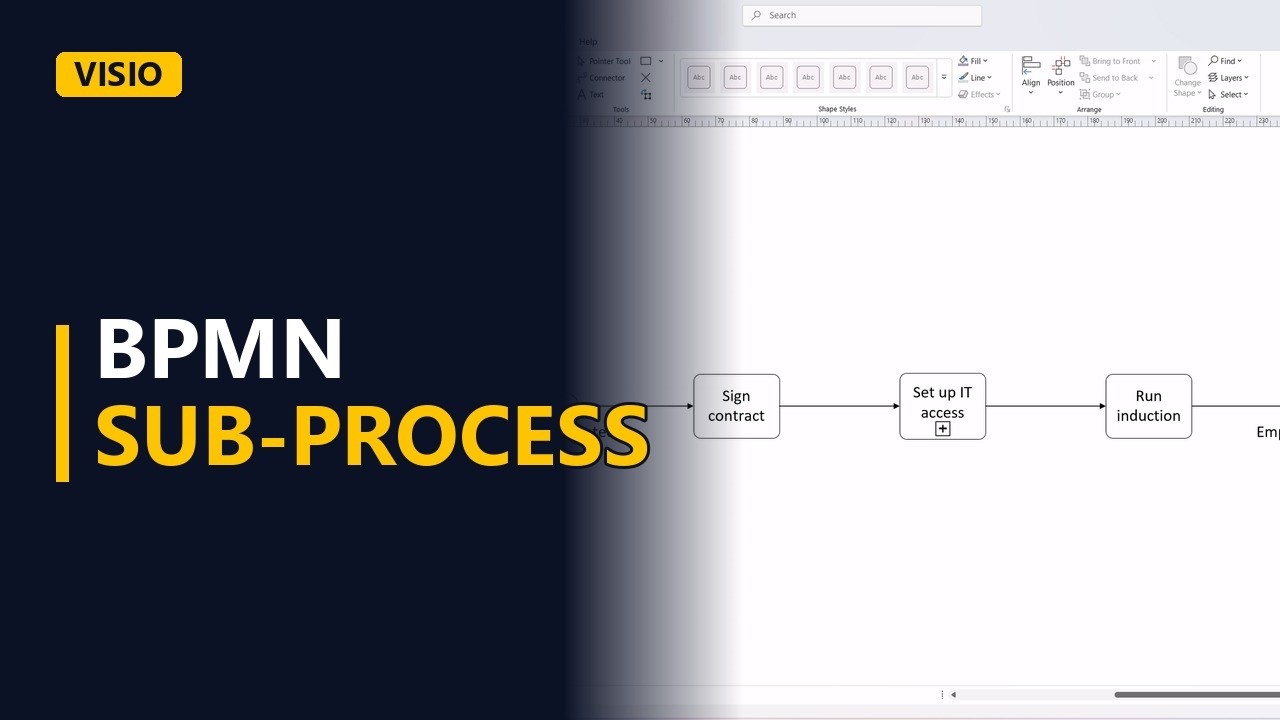
- The process. Our example is employee onboarding. It starts when the candidate accepts the offer. HR sends the contract, a normal task. Connect them with a sequence flow.
- Collapsed sub-process. Setting up IT access is eight steps and three teams. So it becomes a collapsed sub-process. It looks like a task, with a small plus sign at the bottom. Connect it like any other task.
- The plus marker. The plus means there's a whole diagram inside. On this page, readers see one step. On its own page, the IT team sees every detail.
- The process. Then the manager runs the first day induction. Connect it. And the process ends when the new starter is onboarded. Connect the last flow.
- Done. Click away to see the result.
- When to use it. Use a sub-process when a step has many steps of its own, or when another team owns the detail. Name it like a task, a verb and a noun.