How to Make a Pivot Chart in Excel (A Chart That Follows Your Pivot)
A pivot chart is a chart built on a pivot table, so it changes when the pivot changes. Build one from a small sales list, then split it by channel and watch the chart follow, step by step in Excel.
Try it yourself
Copy this table into a blank sheet, then follow the steps below.
Paste at cell A1:
| Quarter | Channel | Product | Sales |
|---|---|---|---|
| Q1 | Store | Laptop | 1,200 |
| Q1 | Store | Phone | 800 |
| Q1 | Web | Laptop | 600 |
| Q1 | Web | Phone | 400 |
| Q2 | Store | Laptop | 1,100 |
| Q2 | Store | Phone | 850 |
| Q2 | Web | Laptop | 800 |
| Q2 | Web | Phone | 600 |
| Q3 | Store | Laptop | 1,150 |
| Q3 | Store | Phone | 800 |
| Q3 | Web | Laptop | 1,000 |
| Q3 | Web | Phone | 800 |
| Q4 | Store | Laptop | 1,200 |
| Q4 | Store | Phone | 850 |
| Q4 | Web | Laptop | 1,300 |
| Q4 | Web | Phone | 1,100 |
Step by step
- Pivot chart basics. A normal chart points at fixed cells, so it breaks when your summary changes shape. A pivot chart is built on a pivot table, so it follows every change you make to that pivot.
- The sales list. The data is a list of 16 sales in A1:D17. Each row has a Quarter, a Channel, a Product and a Sales amount. There is 1 header row and no blank rows or columns.
- Insert pivot table. Select A1:D17, then click Insert > PivotTable. Choose Existing Worksheet and pick F3, so the pivot sits on the same sheet next to the data.
- Quarter in rows. In the PivotTable Fields pane, drag Quarter into the Rows area. Excel lists each quarter once.
- Sales in values. Drag Sales into the Values area. The pivot now shows total sales for each quarter, with a Grand Total row at the bottom. Format the numbers as #,##0 so they are easy to read.
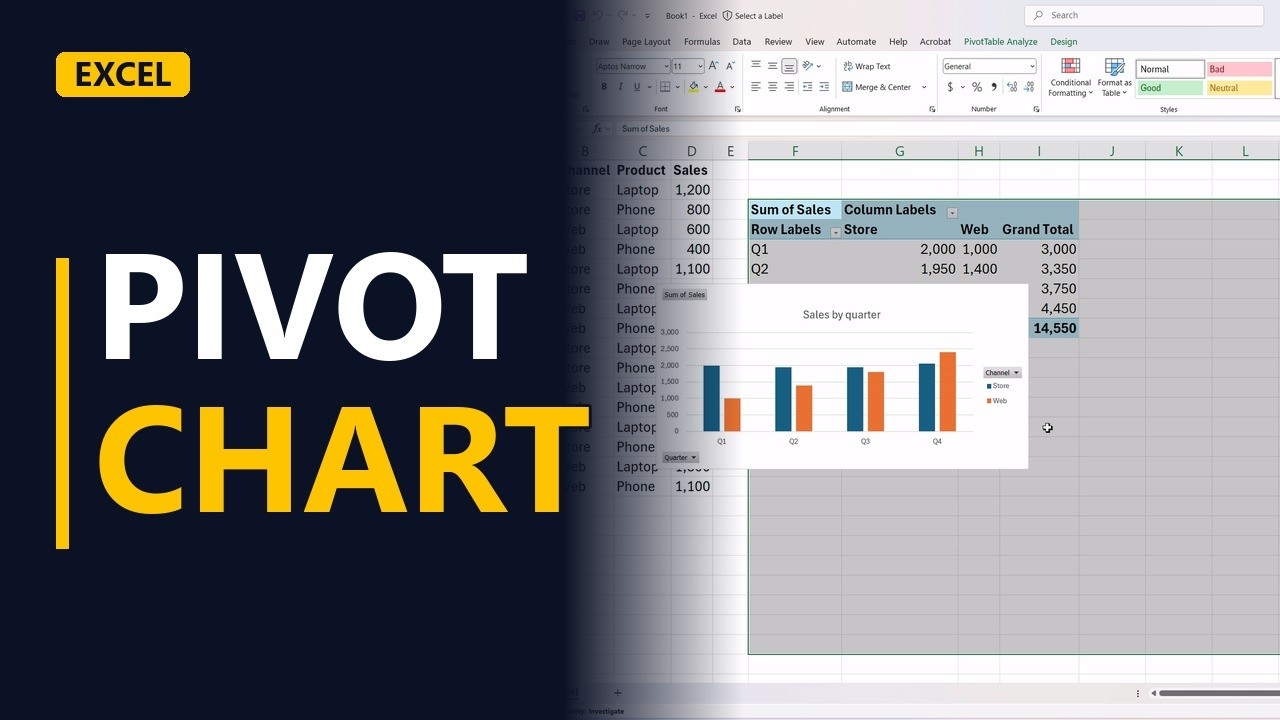
- Insert pivot chart. Click any cell inside the pivot table, then click Insert > PivotChart and pick Clustered Column. Drag the chart below the pivot and give it the title Sales by quarter. You get 1 bar for each quarter, and sales grow every quarter. The Grand Total is not drawn. A pivot chart leaves it out, so 1 giant bar doesn't squash the others.
- Change the pivot. Now drag Channel into the Columns area of the pivot. The pivot splits each quarter into Store and Web.
- The chart follows. You never touched the chart, but it now shows 2 bars for each quarter and a legend for Store and Web. The chart follows the pivot.
- Read the story. The chart tells the story. Store sales stay about flat. Web sales grow every quarter and pass Store in quarter 4.
- Pivot and chart. 1 pivot table and 1 chart, always in step. Change a field in the pivot and the chart redraws itself.
- Pivot chart rules. Build the pivot first, then insert the pivot chart from inside it. Change the fields in the pivot, not the chart's data range. When the source list changes, right-click the pivot and choose Refresh, and both update.
Common mistakes
- New rows don't show after Refresh. The pivot only reads its source range, here A1:D17, so rows added below row 17 are left out. Format the list as a table with Ctrl+T before you build the pivot, or update the range with Change Data Source.
- Expecting the chart to update on its own when the data changes. Moving fields updates the chart straight away, but editing the source list does not. Right-click the pivot and choose Refresh to pull in the new numbers.
- Filtering the chart and losing the pivot view. The pivot chart and its pivot table are linked both ways, so a filter on the chart also filters the table. If you need the table and the chart to show different views, copy the pivot table and build the chart from the copy.
- Charting the raw list instead of a summary. A normal chart of all 16 rows draws 16 bars, not 1 per quarter. Summarise with a pivot table first, then insert the pivot chart from inside it.
When a business analyst uses this
In a RAID log, a business analyst puts Month in Rows and a count of the ID column in Values, then inserts a pivot chart for the steering committee. Dragging Type into Columns splits each month into risks, issues and dependencies, and the chart updates without being rebuilt.
Questions people ask
How do I make a line pivot chart in Excel?
Pick Line instead of Clustered Column when you insert the pivot chart. For a chart you already made, right-click it, choose Change Chart Type and pick Line. A line chart suits quarters or months because it shows the trend over time.
How do I make a stacked pivot chart in Excel?
Choose Stacked Column when you insert the pivot chart, or use Change Chart Type later. With Channel in Columns, each quarter becomes 1 bar with Store and Web stacked on top of each other.
Can I make a pie pivot chart in Excel?
Yes, but a pie shows only 1 series. It works when the pivot has 1 field in Rows and 1 value, such as Quarter and Sales. If you add Channel to Columns, the pie can show only 1 channel, so a column chart works better.