Excel Conditional Formatting for a RAID Log (Business Analyst Tips)
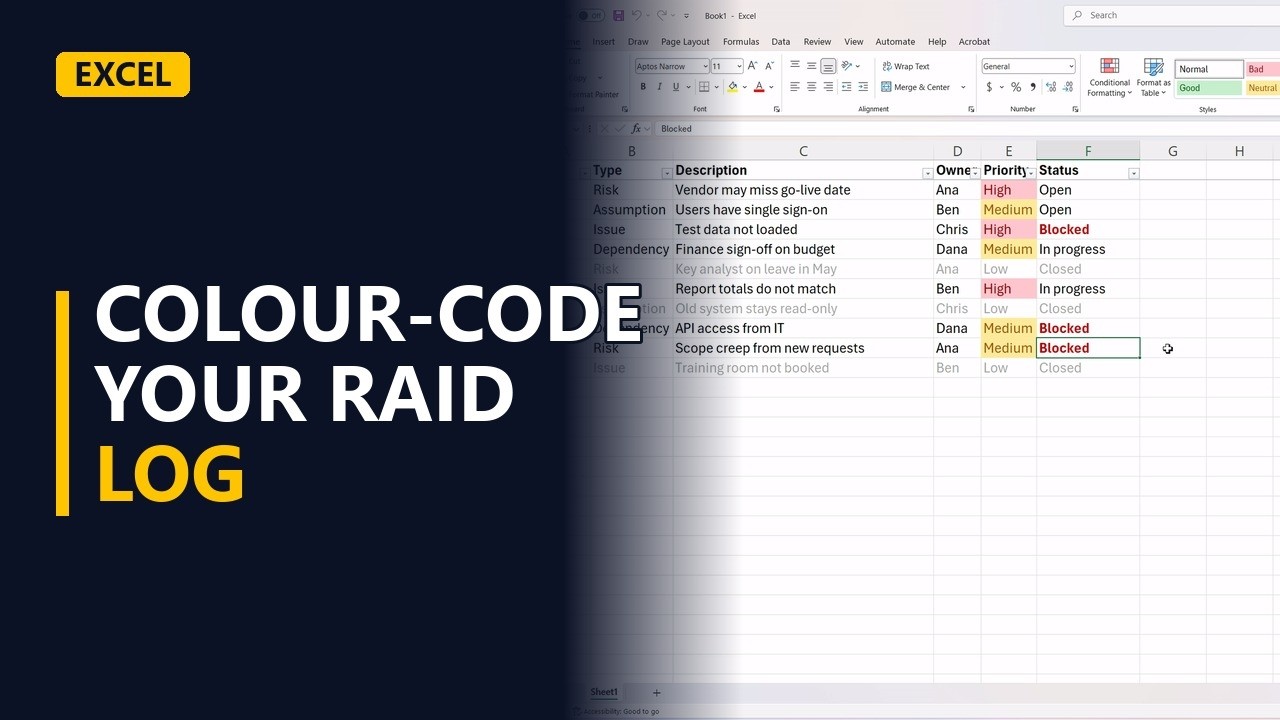
A RAID log tracks risks, assumptions, issues and dependencies. Use Excel conditional formatting so high priority items turn red, blocked items stand out, and closed items fade away, all by themselves.
Try it yourself
Copy this table into a blank sheet, then follow the steps below.
Paste at cell A1:
| ID | Type | Description | Owner | Priority | Status |
|---|---|---|---|---|---|
| R1 | Risk | Vendor may miss go-live date | Ana | High | Open |
| A1 | Assumption | Users have single sign-on | Ben | Medium | Open |
| I1 | Issue | Test data not loaded | Chris | High | Blocked |
| D1 | Dependency | Finance sign-off on budget | Dana | Medium | In progress |
| R2 | Risk | Key analyst on leave in May | Ana | Low | Closed |
| I2 | Issue | Report totals do not match | Ben | High | In progress |
| A2 | Assumption | Old system stays read-only | Chris | Low | Closed |
| D2 | Dependency | API access from IT | Dana | Medium | Blocked |
| R3 | Risk | Scope creep from new requests | Ana | Medium | Open |
| I3 | Issue | Training room not booked | Ben | Low | Closed |
Step by step
- RAID log in Excel. A RAID log tracks a project's risks, assumptions, issues and dependencies. Conditional formatting makes Excel colour the log for you, so the problems stand out.
- The log. The log sits in A1:F11 and has 10 items. Each item has a type, an owner, a priority (column E) and a status (column F).
- Freeze the header. First, freeze the header row with View, Freeze Panes, Freeze Top Row. The column names stay on screen as you scroll down a long log.
- High priority. Select the priority column, E2:E11. Go to Home, Conditional Formatting, Highlight Cells Rules, Equal To. Type High and pick light red. Every High item turns red.
- Medium priority. With E2:E11 still selected, add a second Equal To rule for Medium, in yellow. Now you can see the priorities at a glance.
- Blocked items. Select the status column, F2:F11. Use Highlight Cells Rules, Text That Contains, type Blocked, then pick Custom Format and set the font to bold red. Blocked items need someone to act, so they stand out.
- Fade closed rows. Select the whole log, A2:F11, and add a new rule that uses a formula: =$F2="Closed", with grey text. The $ locks every cell to column F, so the whole row fades when its status is Closed.
- Filter the log. Last, select A1:F11 and turn on Data, Filter. The headers get drop-down arrows, so you can show only one owner or only the open items.
- It updates itself. The rules keep working. Change the status in F10 from Open to Blocked and it turns bold red straight away, with nothing to reapply.
F10
Blocked - 3 RAID log rules. Three tips: colour only what needs action, keep closed items but fade them, and review the log with the team every week.
Common mistakes
- Leaving out the $ in the row formula. With =F2="Closed" applied to A2:F11, each column checks a different column, so only column A fades. Write =$F2="Closed" so every cell in the row checks column F.
- Selecting the header row before writing the formula rule. If the selection starts at A1, the formula should refer to row 1, so a formula written for row 2 checks the wrong row and fades the wrong items. Select A2:F11 so the formula row matches the first selected row.
- Closed items still show a red fill. The grey rule only changes the text colour, so a closed High item keeps its red fill. In Conditional Formatting, Manage Rules, move the Closed rule to the top and tick Stop If True.
- Typos and extra spaces in the priority column. Equal To High won't match "High " with a trailing space or a typo such as "Hihg". Use a drop-down list (Data Validation) so everyone picks the same values.
When a business analyst uses this
In a weekly project meeting, the BA shares the RAID log on screen. High risks and Blocked issues show up in red, so the team talks about those first, and closed items stay in the log in grey as a record of what was resolved.
Questions people ask
How do I highlight a whole row based on one cell in Excel?
Select the rows, for example A2:F11, and add a conditional formatting rule that uses a formula, such as =$F2="Closed". The $ before F makes every cell in the row check column F.
Is Excel conditional formatting case-sensitive?
No. Equal To and Text That Contains ignore upper and lower case, so High, high and HIGH all match.
Does conditional formatting update automatically when data changes?
Yes. The rules are checked again every time a cell changes, so typing Blocked in a status cell turns it red straight away.