SQL SELECT Basics: Get Data Out of a Table (Beginner Tutorial)
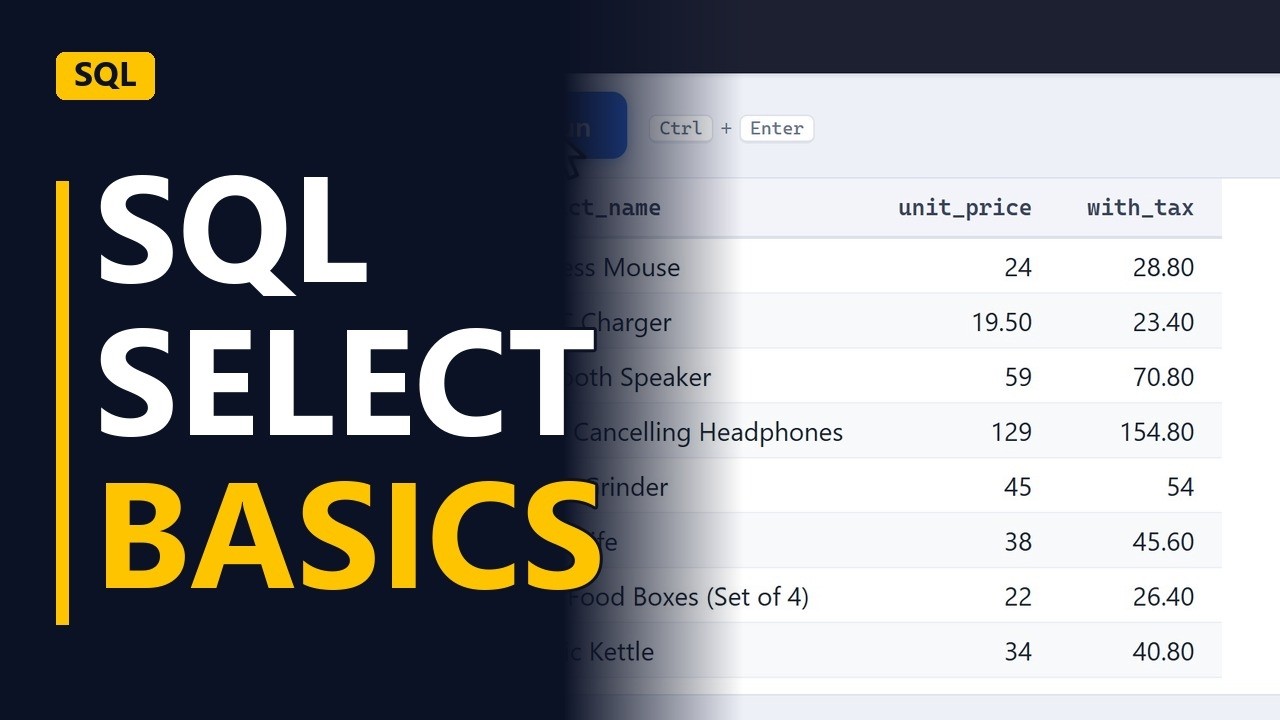
The SELECT statement is how you get data out of any table. Learn SELECT star, picking columns, renaming them with AS, and adding a calculated column, on a sample online shop database.
Step by step
Select
- Get data out. Every SQL query you'll ever write starts with select. It's how you get data out of a table. Let's learn it on a sample database for an online shop.
- The customers table. We'll use the customers table. The list on the left shows its columns. First name, last name, email, city and more.
Select star
- SELECT star. The simplest query. Select star from customers. Star means every column. The semicolon marks the end of the query. Run it. Every column, for every customer. Handy for a first look at a table.
SELECT * FROM customers; - Forty rows. Forty rows. But reports rarely need every column, and on a big table, star is slow.
Pick columns
- Pick columns. So name the columns you need instead. Replace the star with first name, last name and city. Put commas between them, but not after the last one. The same forty customers, just three columns. Much easier to read.
first_name, last_name, city
Rename with AS
- Rename with AS. Column names from a database can be ugly. As gives a column a new name in the result. Last name, as surname. Run it again.
last_name AS surname - The new name. The header now says surname. The table itself didn't change, only this result.
Calculated column
- Calculate. Select can also calculate. Here's the products table. Unit price times one point two gives the price with twenty percent tax, and as names the new column. Every product, with its price and its price with tax.
SELECT product_name, unit_price, unit_price * 1.2 AS with_tax FROM products; - Price with tax. This column isn't stored anywhere. SQL works it out each time you run the query.
Recap
- SELECT in four moves. So, select star shows everything, naming columns keeps it tidy, as renames them, and you can calculate new ones. Next, we'll filter rows with where.


