Mermaid Live Editor Tour: Write, Preview, Share
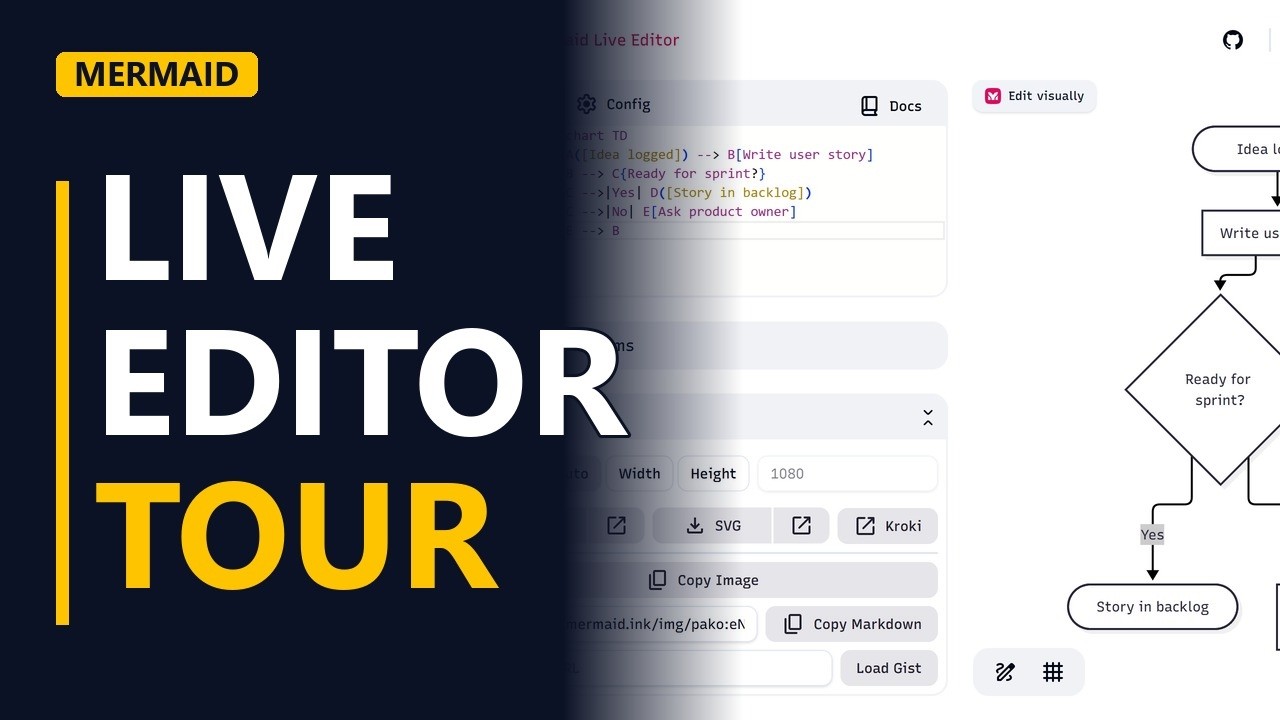
A two minute tour of the free Mermaid live editor: the code panel, the live preview, sample diagrams, the config tab, PNG and SVG export and the share link. Shown with a small user story flow for a product backlog.
Step by step
The editor
- Live editor tour. The Mermaid live editor is a free website where you draw diagrams by typing text. You only need a few parts: the code panel, the live preview, Sample Diagrams, the Config tab, export and the share link.
Code and preview
- Code panel. On the left is the code panel, where you type. The first line says which kind of diagram you want. Here it is flowchart TD, a flowchart drawn top down.
- Live preview. On the right is the live preview. It redraws each time the code changes. There is no save button and no refresh.
- Code panel. To try it, clear the editor and type flowchart TD, then the first link: A([Idea logged]) --> B[Write user story]. The round-ended box is the start, the square box is a step, and --> draws the arrow between them.
flowchart TD A([Idea logged]) --> B[Write user story] - Live preview. As soon as the code is valid, the preview catches up and shows Idea logged with an arrow to Write user story.
- Code panel. Next, add a decision with B --> C{Ready for sprint?}. Curly brackets draw a diamond. The |Yes| link goes to Story in backlog, the |No| link goes to Ask product owner, and E --> B loops back to Write user story.
B --> C{Ready for sprint?} C -->|Yes| D([Story in backlog]) C -->|No| E[Ask product owner] E --> B - Live preview. The preview now shows the whole flow, with the loop from Ask product owner drawn back up to Write user story. If you make a typing mistake, the preview shows an error instead, so you know straight away.
Help and settings
- Sample diagrams. Stuck on the syntax? Sample Diagrams gives you a starter for each diagram type, such as a flowchart, sequence diagram or Gantt chart. Pick one, then change it to fit your project.
- Config. The Config tab holds the diagram settings, such as the colour theme. Most diagrams work fine without changing anything there.
Get it out
- Export. When you're done, open Actions and download a PNG for your slides, or an SVG, which stays sharp at any size.
- Share link. Or click Share to copy a link. The whole diagram is stored inside the link, so a reviewer who opens it sees both your code and the drawing.
Recap
- The rules. Type on the left and watch the preview on the right. Use Sample Diagrams to start fast, download a PNG or SVG for documents, and send a share link for review.
Common mistakes
- Leaving out the diagram type line. Without a line like flowchart TD at the top, Mermaid can't tell what to draw and the preview shows an error. Start every diagram with its type.
- Typing a box ID differently later on. Mermaid joins boxes by their ID, like B. If a later line says b or B2, Mermaid draws a new box instead of linking to Write user story. Keep each ID exactly the same every time you use it.
- Brackets inside box text. Text like Write user story (draft) inside square brackets breaks the code, because Mermaid reads the round brackets as a shape. Put the text in double quotes: B["Write user story (draft)"].
- Treating the share link as saved or private. The diagram lives inside the link, so anyone who has it can see the diagram, and edits you make afterwards are not in the old link. Share a new link after each change, and keep confidential details out.
When a business analyst uses this
In a backlog refinement workshop, a business analyst types the user story flow into the live editor while the team talks, so everyone sees the diagram change on screen. Afterwards they download a PNG for the requirements document and send the share link to the product owner for review before sign-off.
Questions people ask
Is the Mermaid live editor free?
Yes. The live editor is free to use in your web browser, and you can type, preview, export and share diagrams without paying.
How do I export a Mermaid diagram as a PNG or SVG?
In the live editor, open Actions and choose PNG or SVG. PNG suits slides, and SVG stays sharp at any size.
Does a Mermaid share link save my diagram?
The diagram is stored inside the link itself, so whoever opens it sees your code and the drawing. Changes you make after copying the link are not in it, so share a new link after editing.