Mermaid for Business Analysts: Diagrams From Plain Text
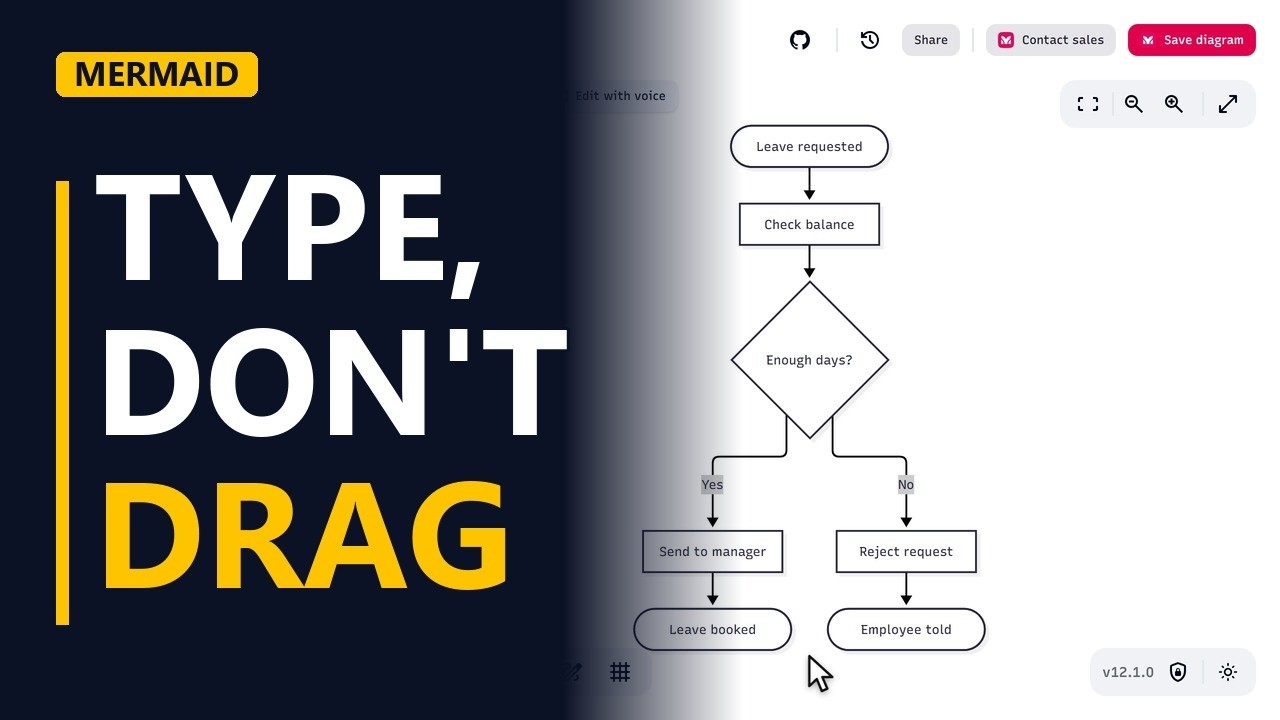
Stop dragging boxes. Type a few lines in the free Mermaid live editor and watch a leave request process draw itself, with a start, a decision, labelled paths and two ends.
Step by step
Diagrams from text
- Type, don't drag. Process maps take a long time when you drag every box by hand. With Mermaid you type a few lines of text and the diagram draws itself. Here we build a leave request flow in about 2 minutes.
- mermaid.live. Open mermaid.live in your browser. It's free and needs no sign-up. You type the code on the left, and the drawing appears on the right.
Start the flow
- Diagram type. Clear the editor and type flowchart TD. TD means top down, so the process reads from top to bottom.
flowchart TD - First step. Square brackets inside round ones, like A([Leave requested]), make a rounded start shape. Square brackets alone make a box. The arrow is two dashes and a greater-than sign: -->. The drawing on the right now shows 2 shapes joined by an arrow. You didn't place anything. Mermaid did the layout.
A([Leave requested]) --> B[Check balance]
Decide
- Decision. Curly brackets make a decision diamond: B --> C{Enough days?}. Put each path's label between two pipe characters. C -->|Yes| goes to Send to manager, and C -->|No| goes to Reject request. The diamond splits the flow into 2 paths, labelled Yes and No.
    B --> C{Enough days?}
    C -->|Yes| D[Send to manager]
    C -->|No| E[Reject request]
Finish
- The ends. Finish each path with a rounded end shape: D --> F([Leave booked]) and E --> G([Employee told]). That's 7 lines of text for one complete process: 1 start, 1 decision, and both paths reach an end.
    D --> F([Leave booked])
    E --> G([Employee told])
Why B As care
- Change in seconds. If the rule changes after the workshop, edit the words on the C{Enough days?} line and the drawing updates. You don't need to redraw any boxes. Because the diagram is just text, you can paste it into a ticket or a wiki page, and anyone can see exactly which words changed.
Recap
- The rules. The rules: start with flowchart and a direction. Write shape, arrow, shape. Use curly brackets for decisions and pipes for path labels, and let Mermaid do the layout.
Common mistakes
- Brackets in the wrong order for the start shape. A[(Leave requested)] draws a database cylinder. Put the round brackets on the outside and the square ones inside: A([Leave requested]).
- Brackets or symbols inside the label text. A label like Check balance (days) breaks the code, because Mermaid reads the brackets as a shape. Wrap the text in double quotes: B["Check balance (days)"].
- A node ID typed in a different case. IDs are case-sensitive, so c and C are 2 different nodes. A typo draws an extra box labelled c instead of joining the path to the Enough days? diamond.
- Using the word end in lower case as a node. end is a reserved word in Mermaid flowcharts, and a node called end breaks the diagram. Write End or END instead.
When a business analyst uses this
After a process workshop, a business analyst can write the agreed leave approval flow as Mermaid text and paste it into the requirements ticket. When a stakeholder changes a rule before sign-off, the analyst edits 1 line, and reviewers can see exactly which words changed instead of comparing 2 pictures.
Questions people ask
Is the Mermaid live editor free?
Yes. mermaid.live is free and works in the browser with no sign-up. You type code on the left and see the diagram on the right.
What does TD mean in a Mermaid flowchart?
TD means top down, so the flow reads from top to bottom. Use LR instead for a flow that reads from left to right.
How do I add a label to an arrow in Mermaid?
Put the label between two pipe characters right after the arrow, like C -->|Yes| D[Send to manager]. The word Yes then appears on that path.