Decisions and Loops in a Mermaid Flowchart

Add yes and no branches, a rework loop and labelled arrows to a Mermaid flowchart. An expense claim process for a finance team, where missing receipts send the claim back, built in the free Mermaid live editor.
Step by step
Branches and loops
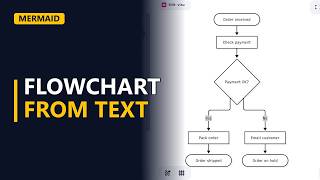
- Decisions and loops. Real processes branch and loop back. In this expense claim process, a claim with missing receipts goes back for rework, and a claim over the limit needs a manager. Both are drawn in the free Mermaid live editor.
- Diagram type. Clear the editor and type flowchart TD. TD means top down, so the chart flows from top to bottom.
flowchart TD
First decision
- Decision. Add two lines. A([Claim submitted]) leads to B[Check receipts], and B leads to C{Receipts complete?}. ([ ]) makes a rounded start shape, and curly brackets make a diamond, the shape for a decision. Keep the question short. The preview shows the diamond with no arrows coming out of it yet. It is waiting for its paths.
A([Claim submitted]) --> B[Check receipts] B --> C{Receipts complete?}
Rework loop
- Rework loop. Add C -->|No| D[Ask for receipts]. The text between the 2 pipe characters is the arrow's label. Then add D --> B, an arrow from Ask for receipts back to Check receipts. That arrow is the loop. Mermaid draws the arrow back up to Check receipts. The loop goes to a step that already exists, so you reuse its ID, B, instead of making a new box.
    C -->|No| D[Ask for receipts]
    D --> B
Second decision
- Label every exit. If receipts are complete, ask a second question: C -->|Yes| E{Over limit?}. From E, Yes goes to F[Get manager approval] and No goes straight to G[Pay claim]. Every exit from a diamond gets a label.
C -->|Yes| E{Over limit?} E -->|Yes| F[Get manager approval] E -->|No| G[Pay claim] - Join and end. An approved claim gets paid too, so add F --> G instead of a second pay step. Then finish with one end: G --> H([Claim paid]). The finished chart has 2 decisions and 1 loop, and every path reaches Claim paid.
F --> G G --> H([Claim paid]) - Label every exit. On Over limit?, both exits are labelled, so nobody has to guess which way means yes.
- Rework loop. Ask for receipts is the rework step. Ask your stakeholders how many times a claim can go round this loop. That limit is often a hidden requirement.
Recap
- The rules. The rules: curly brackets for decisions, a label in pipes on every exit, loops that point back to an existing ID, and every path reaching an end.
Common mistakes
- A typo in the loop's target ID. If you type D --> b instead of D --> B, Mermaid makes a new, unconnected box called b, and there is no loop. IDs must match exactly, capital letters included.
- Retyping the box text when you reuse a step. Write the text once, as in B[Check receipts], and after that use the ID B on its own. If you write B with different text later, the existing box's text changes.
- Exits from a diamond with no labels. C --> D still draws, but readers have to guess which path is yes. Put |Yes| or |No| on every arrow that leaves a diamond.
- Round brackets inside the box text. Text like Check (receipts) breaks the diagram, because Mermaid reads brackets as shape code. Put the text in double quotes: B["Check (receipts)"].
When a business analyst uses this
In an as-is process workshop, type the expense flow into the Mermaid live editor while stakeholders watch, so they can see each decision and rework loop as it appears. Each loop becomes a question for the requirements log, such as how many times a claim can be sent back before it is rejected.
Questions people ask
How do you make a decision diamond in a Mermaid flowchart?
Put the text in curly brackets after the ID, like C{Receipts complete?}. Keep the question short so it fits inside the diamond.
How do you add a label to an arrow in Mermaid?
Put the label between pipe characters straight after the arrow, like C -->|No| D[Ask for receipts]. Mermaid also accepts C -- No --> D.
How do you draw a loop back to an earlier step in Mermaid?
Point an arrow at the earlier step's ID, like D --> B. Mermaid draws the arrow back to the box that already exists instead of making a new one.