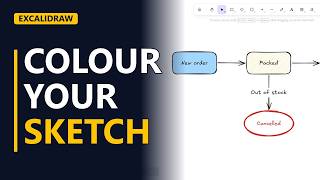
How to Wireframe a Website in Excalidraw (Product Page)
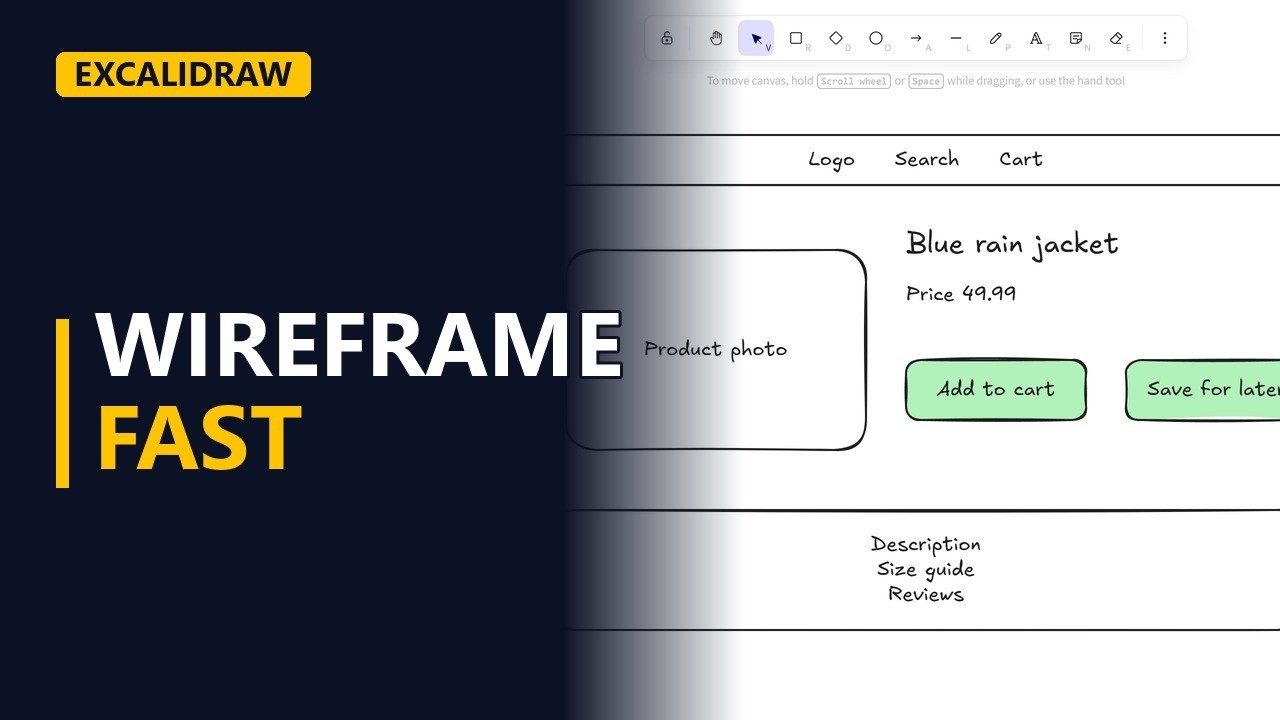
Sketch a website wireframe in Excalidraw before anyone builds it. Draw a header, a photo placeholder, a title and price with the text tool, a button, then save the button to your library and reuse it, on a made-up online shop product page.
Step by step
Why wireframe
- Wireframes for BAs. A rough wireframe settles more questions in a workshop than a page of written requirements. Excalidraw looks hand-drawn on purpose, so people talk about the layout, not the colours. The example is a product page for a made-up online shop.
- excalidraw.com. Open excalidraw.com in your browser. It starts with an empty canvas.
Page layout
- Header. Start with the header. Draw a long, thin rectangle across the top and write Logo, Search and Cart inside it.
- Photo. Draw a big rectangle on the left for the product photo. Don't draw the photo itself. Just write Product photo inside the box.
Text
- Text tool. For plain text, pick the text tool, choose a large size, click on the canvas and type the product title: Blue rain jacket. Then switch back to the medium size and type Price 49.99 under the title.
- Button. A button is a small rectangle with a label. Draw one and label it Add to cart.
- Details. Under the button, draw a box for the product details. Type Description, Size guide and Reviews, and press Enter before each new line.
Buttons and library
- Main action. Give the Add to cart button a light green background (#b2f2bb) so it reads as the main action. Everything else stays grey.
- Library. You'll draw buttons on every screen, so save this one. Select it, open the library on the right and click the plus. Click the saved item to drop a copy on the canvas, then drag the copy into place. Change the copy's label to Save for later. The page now has two buttons that match.
- The finished wireframe. Click an empty spot on the canvas to see the whole page: header, photo, title, price, two buttons and the details box.
Recap
- The rules. The rules: boxes for areas, the text tool for words, and the library for anything you draw twice. Keep it grey and rough, and save colour for the main action.
Common mistakes
- Colouring everything. With lots of colours, the workshop turns into a talk about colours and not about the layout. Keep the boxes grey and give colour only to the main action, like the green Add to cart button.
- Drawing the real content. Sketching a jacket or real product photos takes time and adds nothing to a wireframe. Draw a box and write what goes there, like Product photo.
- Redrawing the same button on every screen. Hand-drawn copies end up with different sizes and look like different buttons. Save the button to the library once, then drop copies and change only the label.
When a business analyst uses this
In a requirements workshop for a new product page, sketch the wireframe live while stakeholders talk. Agreeing where Add to cart and Save for later go on a rough sketch settles questions before anyone writes user stories. The sketch can then go into the requirements document for sign-off.
Questions people ask
Is Excalidraw free?
Yes. You can use excalidraw.com free in your browser and start drawing without an account.
How do I reuse a shape in Excalidraw?
Select the shape, open the library on the right and click the plus to save it. Click the saved item to drop a copy on the canvas, then drag it into place.
How do I start a new line of text inside a box in Excalidraw?
Press Enter while you type. Each press starts a new line, like Description, Size guide and Reviews in the details box.