How to Change Colours, Fill and Stroke in Excalidraw
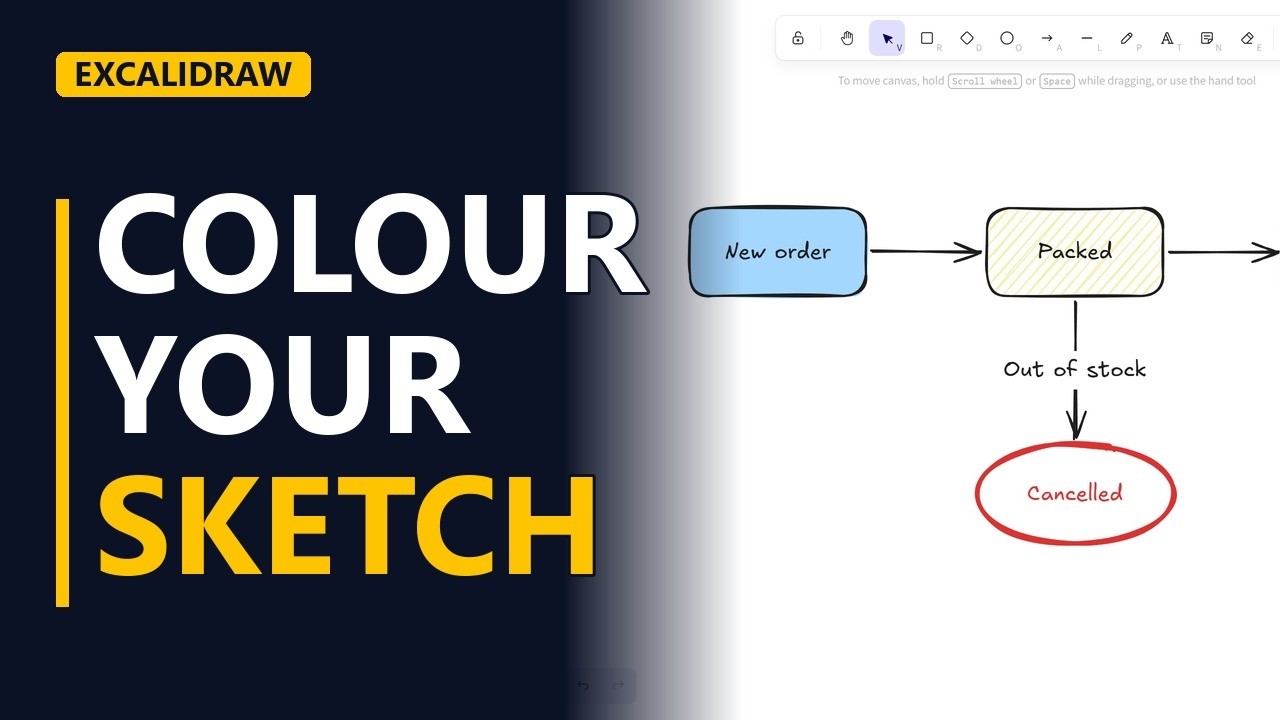
Make an Excalidraw sketch easy to read with colour. Select a shape and use the style panel: background colours, solid, hatched and cross-hatched fills, stroke colour and a bold line for the exception path, on an online shop order status flow.
Step by step
Why colour helps
- Colour with a purpose. When every box in a sketch looks the same, it's hard to read in a meeting. A little colour shows what matters. In this lesson you add colour to an order status flow for an online shop.
- excalidraw.com. Open excalidraw.com in your browser. You start with an empty canvas.
Draw the flow
- The flow. First, draw the plain flow, with one rectangle for each status. Draw a rectangle and type New order in it. Draw a second rectangle to its right for the next status, and type Packed. Draw an arrow from the edge of New order to the edge of Packed. The arrow sticks to both boxes, so it stays connected when you move them. Draw a third rectangle for the last status, and type Shipped. Draw an arrow from Packed to Shipped. Now the happy path reads left to right.
The exception path
- The exception. Some orders never ship. Draw an ellipse under Packed and type Cancelled in it. Draw an arrow down from Packed to Cancelled and label it Out of stock. The flow is done, so now you can add colour.
Background and fill
- Background. Select New order and the style panel opens on the left. Under background, click light blue. The fill is solid by default, so the whole box turns light blue.
- Fill style. Select Packed, pick yellow as the background and change the fill to hatched. The box fills with sketchy lines that look hand drawn. Select Shipped, pick green and choose the cross-hatch fill. Now each status has its own colour and texture.
Stroke for exceptions
- Stroke. Make the exception stand out. Select Cancelled, pick a red stroke colour and choose the bold stroke width. The outline turns thick and red.
- The finished flow. Click an empty spot on the canvas to deselect. The happy path reads left to right, and the red Cancelled exception is easy to spot.
Recap
- The rules. The rules: select a shape and use the style panel. Use background colour for meaning, fill for texture, and a bold red stroke for exceptions. Keep to just a few colours.
Common mistakes
- Changing styles with nothing selected. If no shape is selected, the style panel sets the style for the next shapes you draw instead. Click the shape first, then pick the colour.
- Too many colours. If every box has a different colour, nothing stands out. Give each colour one job, like one colour per status group and red only for exceptions.
- Using colour as the only signal. Some readers can't tell red from green, and the colour is lost when someone prints in black and white. Pair the colour with a label like Out of stock, or a bold stroke.
- Hatched fill behind long text. The sketchy lines of a hatched or cross-hatched fill can make small text harder to read. Use a solid fill on boxes with a lot of text.
When a business analyst uses this
In a process workshop, you sketch the current order flow live with stakeholders. You colour the normal statuses and give the Cancelled path a bold red stroke, so the group talks about what should happen when stock runs out. Those exception rules then become requirements.
Questions people ask
How do I change the fill style of a shape in Excalidraw?
Select the shape, then choose a fill in the style panel on the left: solid, hatched or cross-hatched. The fill uses the background colour you picked.
How do I make a line or outline thicker in Excalidraw?
Select the shape or arrow and choose a heavier stroke width, such as bold, in the style panel. You can change the stroke colour there too.
Can I change the colour of several shapes at once in Excalidraw?
Yes. Select them all, by Shift-clicking each one or by dragging a box around them. Then pick a colour in the style panel, and it applies to every selected shape.


