How to Make an Org Chart in Excalidraw
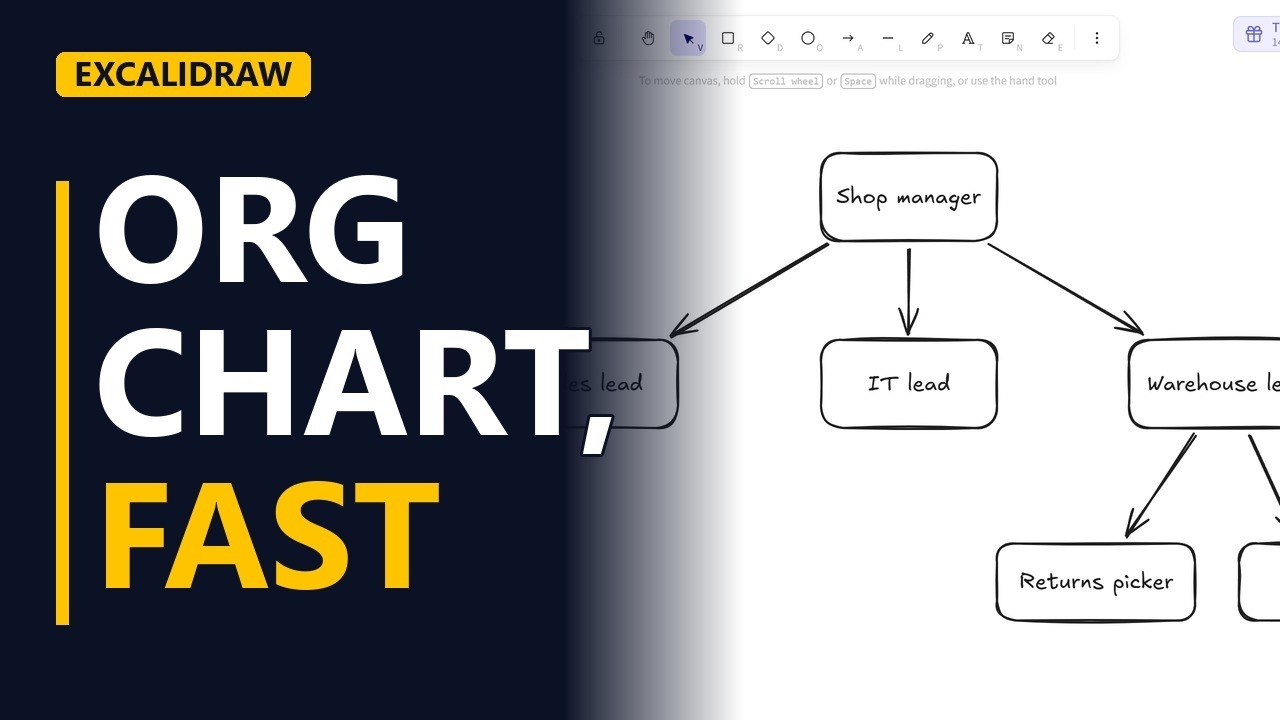
An org chart shows who reports to whom, so you know who to ask and who signs off. Sketch one in Excalidraw: the manager on top, one row per level, boxes lined up neatly and arrows from each manager down to their team. Example: a made-up online shop team.
Step by step
Why an org chart
- Org chart. An org chart shows who reports to whom and who signs off, all in one picture. The example is a made-up online shop team.
- excalidraw.com. Open excalidraw.com. You need an empty canvas. If your last drawing opens, open the menu (top left) and pick Reset the canvas to start fresh.
The top
- Manager on top. The person in charge goes at the top, in the middle. Draw a rectangle, press Enter and type Shop manager.
One row per level
- One row per level. Everyone who reports to the manager goes on the next row down. Draw a rectangle on the left and type Sales lead. Draw the IT lead box in the middle of that row, right under the Shop manager. Draw the Warehouse lead box on the right, a bit wider so the longer name fits. This one landed a little lower than the other 2 leads.
- Line them up. Drag the Warehouse lead box up until it is level with Sales lead and IT lead. Boxes on the same level share 1 row, so the chart is easy to read.
Who reports to whom
- Arrows down. Pick the arrow tool and drag from the Shop manager box down to the Sales lead box. The arrow points from the manager to the person who reports to them. Draw a second arrow from the Shop manager down to the IT lead. Draw a third arrow from the Shop manager down to the Warehouse lead.
The next level
- One row per level. The Warehouse lead has a team of 2, who go 1 row lower, under their own lead. First draw a box and type Picker. Then draw a Packer box on the same row as Picker.
- Arrows down. Draw an arrow from the Warehouse lead down to Picker. Draw another arrow from the Warehouse lead down to Packer.
Keep it current
- Update a role. Roles change. Here the picker now also handles returns. Select the Picker box, press Enter and change the text to Returns picker.
- The finished chart. Click an empty spot to deselect. The finished chart has 1 manager, 3 leads on 1 row, and a team of 2 under the Warehouse lead.
Recap
- The rules. The rules: the boss goes on top, each level gets its own row, boxes on a row line up, and every arrow points down from a manager to their team. Update the chart when roles change.
Common mistakes
- Arrows that are not attached to the boxes. If you start or end an arrow in empty space, it stays put when you move a box, and the chart falls apart. Start and end each arrow on a box, so the box highlights and the arrow moves with it.
- Boxes on one level that sit at different heights. A box that is a little high or low makes it look like a different level. Drag it level with the others, or select the whole row and use the align options that appear when 2 or more shapes are selected.
- Arrows pointing the wrong way. An arrow from a team member up to the boss reads as the boss reporting to them. Always drag from the manager down to the team member.
- Thinking the chart is saved somewhere safe. excalidraw.com keeps your drawing in this browser only, so clearing the browser data or switching computers loses it. Save it to a file or export an image from the menu.
When a business analyst uses this
At the start of a project, a business analyst can sketch the client team as an org chart. It shows who owns each requirement and who signs off. Share it before the first workshop, and update the boxes when people change roles so the stakeholder list stays right.
Questions people ask
Is Excalidraw free to use?
Yes. You can draw on excalidraw.com for free without making an account.
How do I add text inside a box in Excalidraw?
Select the box and press Enter, then type. To change the text later, select the box, press Enter again and retype it.
Does Excalidraw save my drawing?
excalidraw.com keeps your last drawing in your browser, so it opens again next time on the same browser. To keep a copy you can share or open elsewhere, save it to a file or export it as an image from the menu.