Saved Filters in Jira (Share Your Search)
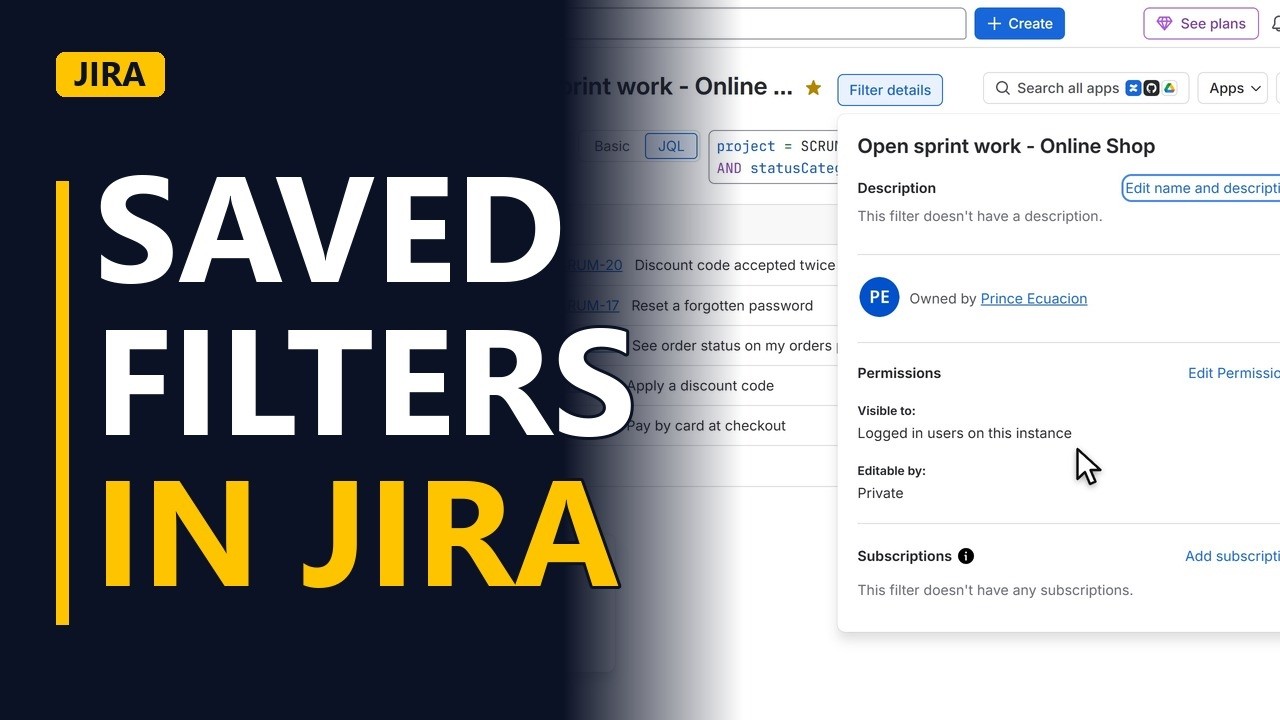
Turn a JQL search you run every week into a saved filter, share it with your whole team, and open it again in one click. Shown step by step on a real Jira site.
Step by step
Why save a search
- Saved filters. A saved filter is a search you run often, saved once. You can share it with your team and open it again in one click, for example to see what is still open in this sprint.
- Switch to JQL. Open the search page and make sure it is set to JQL.
Build the search
- Ask the question. Select the whole query (Ctrl+A) and replace it with: project = SCRUM AND sprint in openSprints() AND statusCategory != Done. This finds everything in the open sprint that is not done yet. Click Search. In this example, 5 work items are still open.
project = SCRUM AND sprint in openSprints() AND statusCategory != Done
Save it
- Save filter. To keep the search, click Save filter. Give it a name that says what it shows and for which project. Here it is Open sprint work - Online Shop.
Share it
- Share it. A new filter is private, so only you can see it. To share it, open the viewers list. Pick My organization, so everyone who logs in to this Jira site can open the filter. Click Add viewers. Keep the editors private, so nobody changes your query by mistake.
- Save. Click Save.
Use it
- One click away. The filter now has its own page and its own link. Send the link to the team, or add the filter to a dashboard. The star marks the filter as one of your favourites. Starred filters also show up in the sidebar, under Filters.
- Filter details. Click Filter details to check who can see the filter. It shows Logged in users on this instance as viewers, and only you as editor. Anyone who opens the link sees the latest results every time.
Recap
- Search, save, share. In short: write the search once in JQL, save it with a clear name, share it with My organization while keeping editors private, then send the link to the team.
Common mistakes
- Leaving the filter private. New filters can only be seen by you, so a teammate who opens your link can't use it. Add My organization as viewers before you click Save.
- Letting everyone edit the filter. If anyone can edit, someone can change the query by mistake, and the whole team sees the wrong list. Share viewing with the team and keep the editors private.
- Typing a sprint name into the query. A filter tied to one named sprint stops being useful when that sprint ends. Use sprint in openSprints() so the filter always shows whichever sprint is open now.
- A vague filter name. Names like My filter are hard to find later and mean nothing to the team. Say what it shows and for which project, like Open sprint work - Online Shop.
When a business analyst uses this
Before each sprint review, a business analyst shares a saved filter of unfinished work with the product owner. Nobody has to rebuild the query every week. Everyone opens the same link and sees the latest list of what is still open, ready to go through in the meeting.
Questions people ask
How do I save a JQL search as a filter in Jira?
Type your JQL on the search page, click Search, then click Save filter. Give it a clear name, choose who can view it, and click Save.
Where can I see my saved filters in Jira?
Starred filters show up in the sidebar, under Filters. Each saved filter also has its own page and link, so you can bookmark it or add it to a dashboard.
How do I share a saved filter with my team in Jira?
When you save the filter, open the viewers list, pick My organization and click Add viewers. Then send the filter's link. Anyone who logs in to that Jira site can open it.


