Link Issues in Jira: Blocks, Relates To, Duplicates
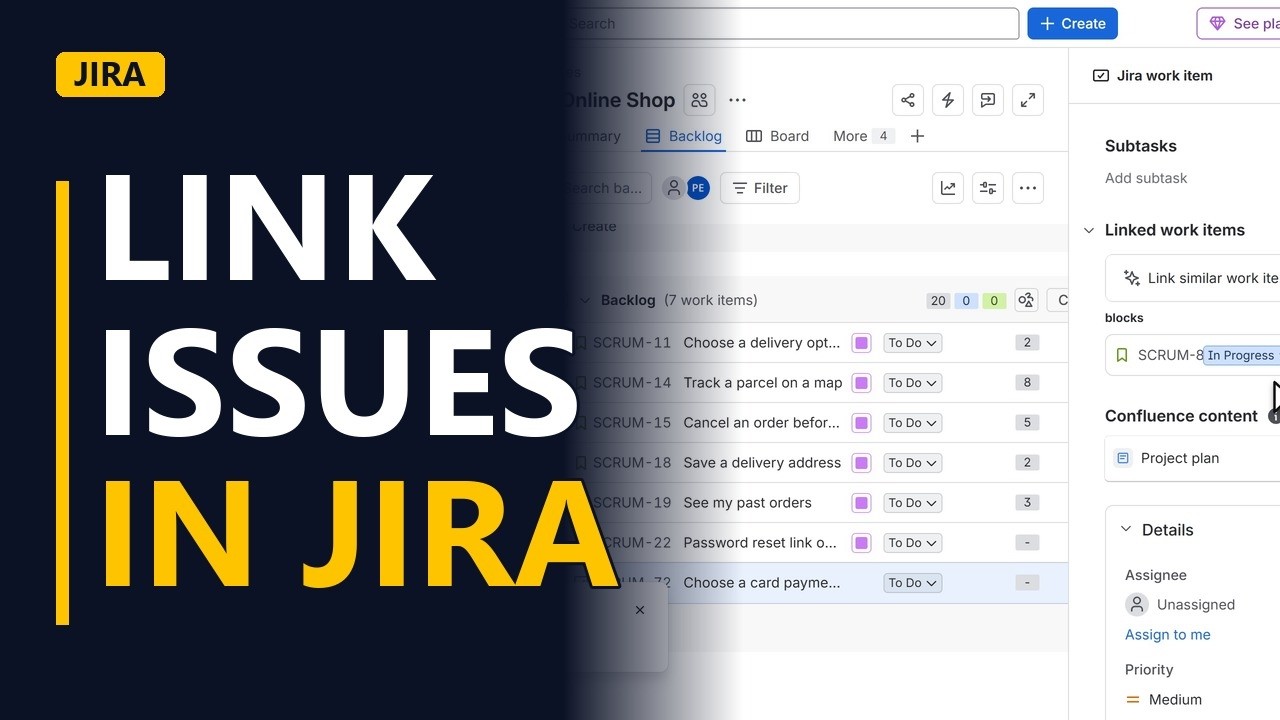
Show dependencies in Jira with issue links: what blocks what, what only relates, and what is a duplicate. Create a task and link it to the story it blocks, step by step on a real Jira site.
Step by step
Why link
- Link issues. Some work can't start until other work is finished. A link in Jira shows that dependency, so the team sees it before it causes a delay. Here we create a task and link it to the story it blocks.
The blocker
- Create a task. Card payments can't be built until someone picks a payment provider, so first create that task. Click Create. In the create window, click the work type field, and pick Task, the one with the blue tick icon. In Summary, type Choose a card payment provider. Click Create to save the task.
- Open it. The new task appears at the bottom of the backlog. Click it to open it.
Link it
- Add a link. Under Linked work items, click Add linked work item. A small link form opens.
- Pick the link type. First, choose how the 2 items are linked. Open the link type list. With blocks, this item must be finished first. With relates to, the link is softer and just useful to know. With duplicates, both items are the same work. Pick blocks.
- Find the other item. Next, search for the story this task blocks. Type Pay by card. Click the story Pay by card at checkout in the results. You can pick more than one item here. One is enough, so click outside the list to close it.
- Link. Click Link to save it.
- Both sides see it. The task now shows that it blocks SCRUM-8, Pay by card at checkout. The story shows that it is blocked by this task, so nobody starts it too early.
Recap
- Blocks, relates, duplicates. Use blocks when one item must finish first, relates to when the link is just useful to know, and duplicates when 2 items are the same work. You add the link once, and Jira shows it on both items.
The default link types
Blocks and is blocked by: one item can't move until the other is done. Relates to: the items are connected, but neither waits for the other. Duplicates and is duplicated by: the same request was logged twice. Clones and is cloned by: Jira adds these when you clone an item. Your Jira admin can add more link types, so your list may be longer.
Find linked items with JQL
In the search, switch to JQL and type issue in linkedIssues("SCRUM-12") to see everything linked to SCRUM-12. To see every item in a project that is waiting on something, try project = SCRUM AND issueLinkType = "is blocked by". A saved filter like this makes a quick blocked list for stand-up or sprint planning.
See or remove a link
Open the work item and scroll to Linked work items to see every link, grouped by type. To remove one, hover over it and use its menu to remove the link. A link joins both items, so removing it from one item removes it from the other as well.
Common mistakes
- Linking in the wrong direction. blocks and is blocked by are the 2 sides of one link. Add the link from the item that must finish first and pick blocks, or from the waiting item and pick is blocked by.
- Using relates to for a real dependency. relates to doesn't tell anyone to wait. If the story can't start until the task is done, use blocks so the story shows is blocked by.
- Expecting duplicates to close the extra item. The link only records that 2 items are the same work. It doesn't change either item's status, so close the extra one yourself so nobody works on both.
- Looking for Linked issues. Jira Cloud now calls issues work items, so the section is Linked work items and the button is Add linked work item. Jira Data Center (self-managed) and older Jira may still say issues.
When a business analyst uses this
Before sprint planning, a BA links each story to the task or decision it waits on, for example a vendor choice logged in the RAID log, using blocks. In the planning meeting, anyone who opens the story sees is blocked by and knows it isn't ready to start.
Questions people ask
How do I link two issues in Jira?
Open one of them, click Add linked work item under Linked work items, pick a link type, search for the other item and click Link. In Jira Cloud, issues are now called work items.
Can I link multiple issues at once in Jira?
Yes. When you search for the other item, you can pick more than one before clicking Link, and they all get the same link type.
Can you link issues between projects in Jira?
Yes. On the same Jira site you can link work items from different projects. Search for the other item in the same box, as long as you have permission to see its project.


