Definition of Ready Checklist in Jira (Tick Boxes on Every Story)
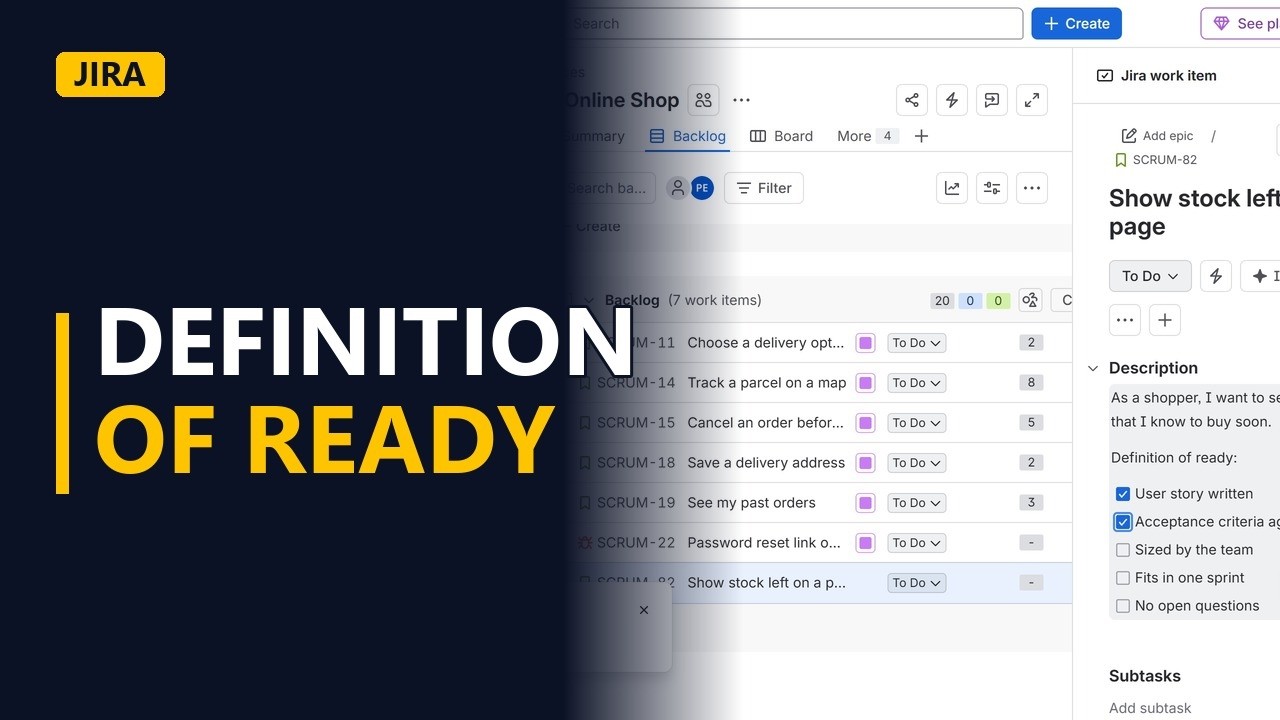
Put a Definition of Ready checklist on a Jira story with tick boxes in the description: story written, acceptance criteria agreed, sized, small enough, no open questions. Tick it off in refinement, so only ready stories go into a sprint.
Step by step
Ready or not
- Definition of ready. A story is ready when the team can start it without stopping to ask questions. A Definition of Ready checklist lists the checks a story must pass first. Here it goes on a Jira story as tick boxes.
- Create. Start in the backlog of the online shop project and click Create.
- Pick Story. In the create form, click the Work type field (called Issue type in Jira Data Center and older Jira Cloud), and pick Story from the list.
The checklist
- The story. In Summary, type Show stock left on a product page. In Description, write the story itself: who, what and why. Here it is: As a shopper, I want to see how many are left, so that I know to buy soon.
- A heading. Under the story, type the heading "Definition of ready:" and press Enter.
- Tick boxes. In Jira Cloud, type [] and a space, and Jira turns it into a tick box. Type "User story written", then press Enter. The next line becomes a tick box too. Type "Acceptance criteria agreed". Add 3 more checks the same way: "Sized by the team", "Fits in one sprint" and "No open questions". That makes 5 checks in total.
- Create. Click Create to save the story.
Tick it off
- Tick in refinement. Open the new story. It appears at the bottom of the backlog. The Definition of ready checklist sits right in the story's description. In backlog refinement, go through it with the team. The story is written, so tick the first box, "User story written". The team has agreed the acceptance criteria, so tick "Acceptance criteria agreed" too.
- Not ready yet. 3 boxes are still empty, starting with "Sized by the team". The story has no size yet, so it is not ready for a sprint. It waits in the backlog until every box is ticked.
Recap
- Ready before the sprint. In short: add a "Definition of ready:" heading to each story, add a tick box for each check, and tick them off in refinement. Any empty box means the story is not ready yet.
Common mistakes
- No space after the brackets. In Jira Cloud the tick box only appears once you type the space after []. If the brackets stay as plain text, delete them and type [] and a space again.
- Ticking boxes before the check is really done. Tick a box only when the team agrees in refinement. For example, leave "Sized by the team" empty until the team has actually sized the story.
- Expecting the tick boxes to block the sprint. The tick boxes are just part of the description. They don't change the status or stop anyone adding the story to a sprint, so check the list before sprint planning.
- Taking a story into a sprint with empty boxes. Any empty box means not ready. Leave the story in the backlog and close the gap first, such as getting an answer to an open question.
When a business analyst uses this
Before sprint planning, a business analyst runs backlog refinement and goes through each story's Definition of ready checklist with the team. Any story with an empty box, such as an open question for the product owner, goes on the analyst's follow-up list instead of into the sprint.
Questions people ask
What should a definition of ready checklist include?
It should be a short list of checks a story must pass before a sprint. This one has 5: user story written, acceptance criteria agreed, sized by the team, fits in one sprint, and no open questions.
How do I add a definition of ready checklist in Jira?
Jira has no built-in Definition of Ready field, so put the checklist in the story's description. In Jira Cloud, type a "Definition of ready:" heading, then type [] and a space to make a tick box for each check.
Does ticking the checklist change the story's status in Jira?
No. The tick boxes are only part of the description. Statuses come from your project's workflow, so a Ready status exists only if your workflow has one.


