How to Add a Table of Contents in Confluence (Long Requirement Pages)
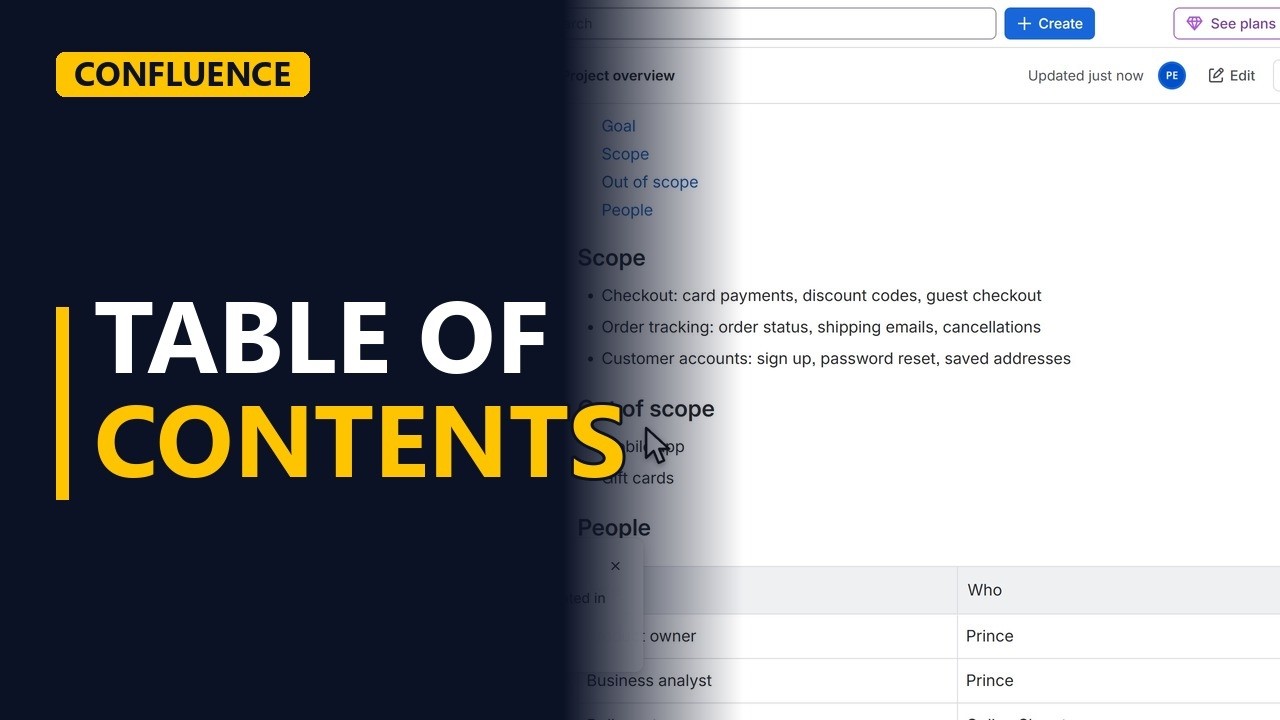
Add a table of contents to a long Confluence page in a few seconds. Confluence builds it from your headings, and readers click a heading to jump straight to it.
Step by step
Why a contents list
- Table of contents. On a long page, readers have to scroll to find the part they need. A table of contents at the top lets them jump straight to it, and Confluence builds the list for you from your headings.
- Use headings. The table of contents is built from headings, so your page needs real headings first. This page has 4: Goal, Scope, Out of scope and People.
Add it
- Edit. Click Edit to open the page in the editor.
- Slash command. Put the list near the top. Click in the opening line of the page. Press End to move the cursor to the end of that line. Press Enter to start a new line. Type /table of contents. The slash opens Confluence's list of things you can insert. Press Enter. Confluence inserts a list of every heading on the page, in the same order as the page. You don't need to keep the list up to date by hand. If you add or rename a heading later, it updates by itself.
/table of contents - Update. Click Update to publish the page with the new table of contents.
Use it
- Jump to a part. The page now opens with a list of its parts. Click a heading in the list, for example Out of scope. The page jumps straight to that section, so readers don't have to scroll and search for it.
Recap
- Headings, slash, update. To sum up: give your page clear headings, type /table of contents near the top, and click Update. Readers can then click any heading in the list to jump to it.
Change what the table of contents shows
While editing, click the table of contents and then the pencil to open its settings. The useful ones are the lowest and highest heading level (for example, show only Heading 1 and Heading 2 on a long requirements page), a list or flat layout, and filters to include or leave out headings that match some text. To remove the table of contents, click it and use the bin icon.
Table of contents empty or not showing?
First check that the page uses real headings (type / and pick a heading, or start a line with # and a space), not bold text. Then check the heading levels in its settings: if the lowest level is Heading 2, your Heading 1 titles won't appear. Headings that come from another page, for example through an Include page or Excerpt macro, may not be listed. The list can also look different while you edit, so check the published page.
A table of contents for child pages
The table of contents only reads the headings on the page it sits on. To list the pages under a page, use the Children display macro (type /children). For a whole space or a big section of it, the Page tree macro shows a clickable tree of pages instead.
Common mistakes
- Using bold text instead of headings. The table of contents only lists real headings. Bold text that looks like a heading won't show up, so change those lines to heading styles.
- Putting the list at the bottom of the page. Readers have to scroll past everything to find it, which defeats the point. Put it on a new line near the top, as the lesson does after the opening line.
- Leaving the page without clicking Update. Until you click Update, readers won't see the table of contents. Click Update when you finish editing.
- Fixing the list by hand after renaming a heading. There's no need. The list is built from the page's headings and updates by itself, so just edit the heading.
When a business analyst uses this
On a long requirements page with sections such as Goal, Scope, Out of scope and People, a table of contents at the top lets stakeholders in a review workshop or at sign-off jump straight to Out of scope. Nobody has to scroll and hunt for it while everyone waits.
Questions people ask
How do I add a table of contents to a Confluence page?
Edit the page, start a new line near the top, type /table of contents and press Enter, then click Update. Confluence builds the list from the page's headings.
Does the Confluence table of contents update automatically?
Yes. If you add or rename a heading, the list updates by itself, so you never have to edit it by hand.
Why is my Confluence table of contents missing some sections?
The table of contents only lists headings. Any section title written as normal or bold text won't appear until you change it to a heading.


