Page History in Confluence: Compare and Restore
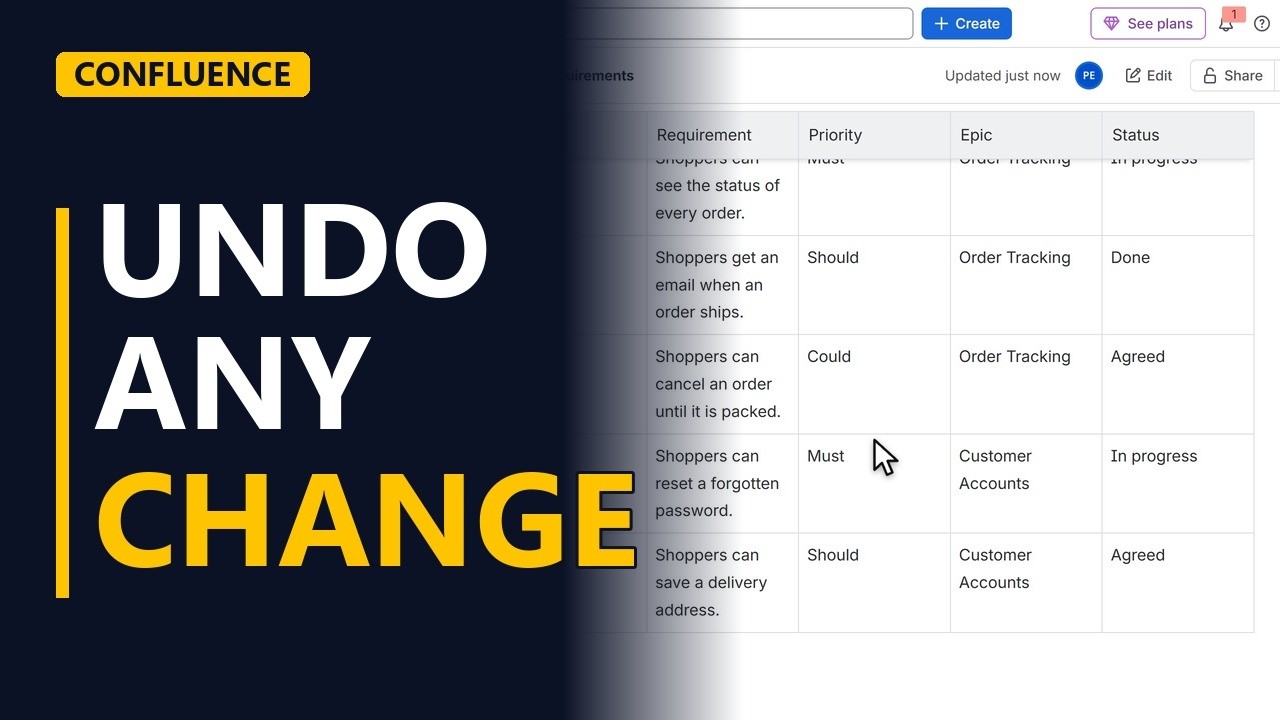
Someone changed your requirements page and nobody knows who or why. Open the page history in Confluence to see who changed what, compare it with the version before, and restore the old version in a few clicks.
Step by step
Why page history
- Who changed this?. A priority on your requirements page changed, and nobody remembers agreeing to it. Who did it, and what did it say before? Confluence keeps every version of a page. Let me show you how to check it and undo it.
Make a change
- A change. First, a change, so the page has a second version. Click edit. The cancel order requirement is a Could. Change it to a Must. Click update. That saves version two of the page.
Open the history
- Version history. Now, the history. Click the three dots at the top right of the page, and pick version history.
- Who and when. Each row on the right is one version. The number, the date and time, and who saved it. Version two is the current one.
Compare
- Compare. Highlight changes is switched on, so Confluence compares this version with the one before it. Here is the change. Could is crossed out in red, and Must is added in green. Now you know who changed what, and when.
Restore
- Restore. The team never agreed to Must, so let's undo it. Go to version one, the old text, and click its three dots. Then pick restore. Write a short comment, so the team knows why you rolled it back. Click restore.
- A new version. Version restored, and the priority says Could again. Restore does not delete anything. It saves the old text as a new version, version three, so the history keeps both the change and the undo.
Recap
- History, compare, restore. So, three moves. Open version history from the three dots. Read who saved each version, and look at the red and green changes. Restore an old version with a comment.


