Labels and Search in Confluence: Find Any Page Fast
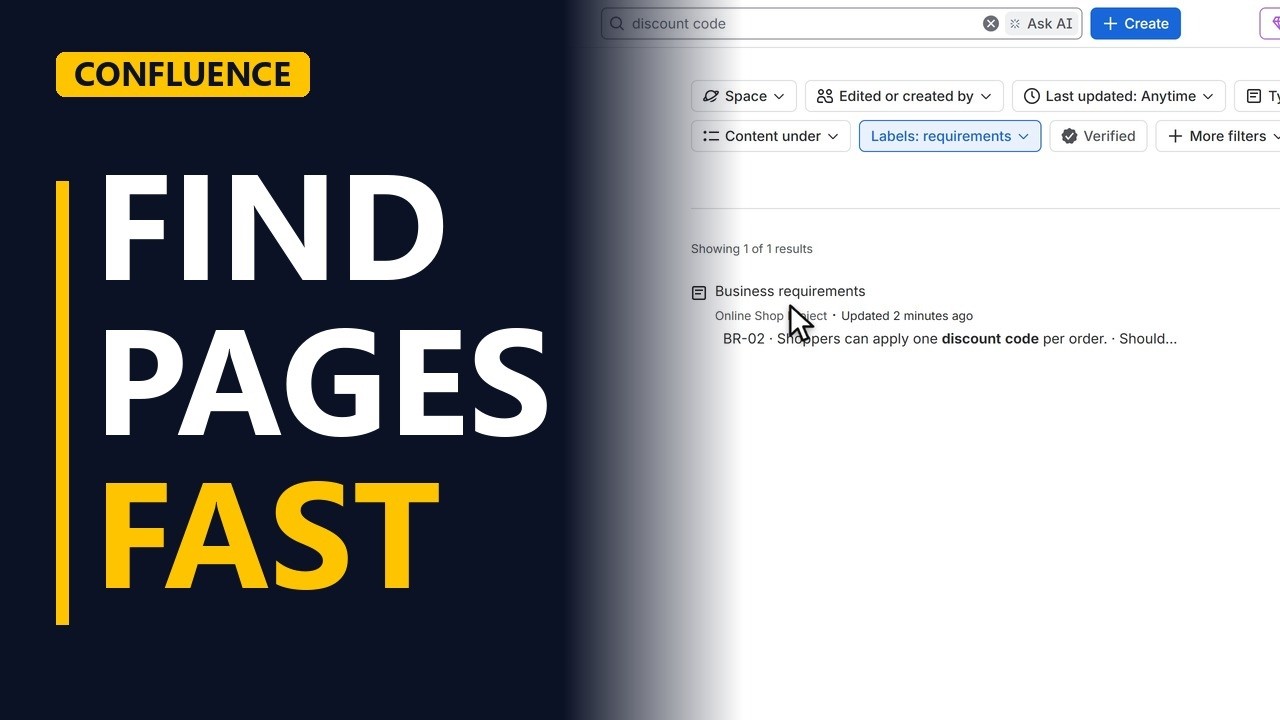
Tag your Confluence pages with labels, then find them in seconds with search. Add two labels to a requirements page, search the space for a phrase, and filter the results by label.
Step by step
Find pages fast
- Labels and search. Your Confluence space keeps growing. So where is the page about discount codes? Two tools find it in seconds. Labels, which tag pages by topic, and search. Let me show you both in our online shop space.
Add labels
- Add labels. Labels first. A label is a short tag on a page. On the business requirements page, go to the bottom. Next to add a comment, there is add labels. Click it. A small window opens.
- One word. Type requirements, and press enter. Confluence saves the label at once. Keep labels in lower case, so everyone types them the same way. A label has no spaces. For two words, join them with a dash. Online dash shop, and enter. Click close.
- On the page. Both labels now sit at the bottom of the page. Put the same labels on every requirements page, and they become one group you can find together.
Search
- Search. Now, search. Click the search box at the top. Type what you need. Discount code. Confluence looks at page titles and at the words inside every page, and shows the best matches as you type. Press enter to see every result.
- Results. Every page that mentions discount codes is here. Each result shows the page, its space, when it changed, and the matching words in bold.
Filter by label
- Filter by label. Too many results? Filter them. Click labels. Type the label we just added. Requirements. And tick it.
- The right page. Only the page with that label is left. Search finds the words, and the label narrows them down to the right group of pages.
Recap
- Label, search, filter. So, two habits. Put short labels on every page, in lower case, with dashes instead of spaces, and reuse the same ones. Then search for the words you need, and filter by label.


