How to Sort Records in Airtable by MoSCoW Priority
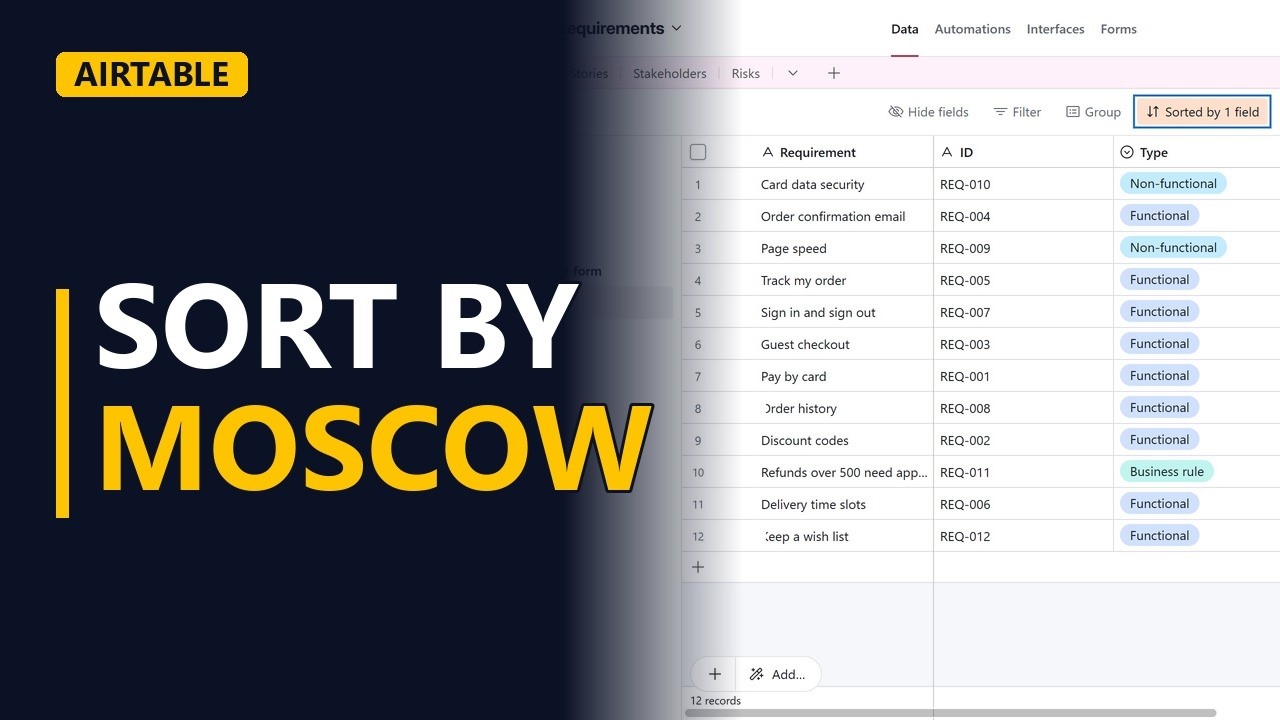
Sort a requirements list by MoSCoW priority in a new Airtable view, so the must haves come first. Learn why a single select sorts by the order of its options, not A to Z. Free plan, step by step, for business analysts.
Step by step
The question
- Sort by priority. Stakeholders usually want the must haves first. A plain A to Z sort would put Could have at the top, so here is how to get MoSCoW order in Airtable on the free plan.
- The priority field. This is a requirements table. Priority is a single select field with 4 options: Must have, Should have, Could have and Won't have. Right now the rows are in ID order, so a could have like Delivery time slots sits in the middle of the must haves.
Make the view
- New view. Don't sort the grid view the whole team shares. In the views list, create a new Grid view and name it By priority.
Sort
- Sort. Click Sort in the toolbar and pick Priority. All 12 requirements stay in the view. Only their order changes. The Sort button now says it is sorted by 1 field, so anyone who opens this view can see a sort is on.
The result
- Must haves first. The 7 must haves now sit at the top, such as Pay by card. Rows with the same priority are in no set order.
- Then should haves. Next come the 3 should haves, such as Discount codes.
- Could haves last. The 2 could haves move to the bottom, such as Keep a wish list.
Why it works
- Option order. This works because Airtable sorts a single select by the order of its options, not A to Z. Here the options go Must have, Should have, Could have, Won't have. Put your options in the order you want the sort to follow.
- Just a view. The sort only applies to the By priority view. The shared grid view still lists the requirements in ID order.
Recap
- Sort by MoSCoW. Make a new view first, then sort it by Priority. A single select sorts by the order of its options, so put Must have first and Won't have last.
Common mistakes
- Sorting the shared grid view. In a collaborative view, a sort changes the order for everyone who uses that view. Make a separate view such as By priority and sort that one instead.
- Priority stored as a text field. A single line text field sorts A to Z, so Could have comes before Must have. Change the field type to single select so the sort follows the order of the options.
- Options in the wrong order. If Could have was added before Must have, it will sort first. Edit the Priority field and drag the options into the order Must have, Should have, Could have, Won't have.
- Expecting a fixed order within each priority. With 1 sort field, rows that share a priority have no set order. Add a second sort field, such as ID, to keep them in order inside each group.
When a business analyst uses this
Before a sprint planning workshop, a business analyst opens the By priority view of the requirements backlog so the team walks through the must haves first, while the shared grid view stays in ID order for traceability.
Questions people ask
How does Airtable sort a single select field?
It sorts by the order of the field's options, not alphabetically. To change the sort order, reorder the options in the field settings.
Does sorting a view in Airtable change the order for everyone?
Yes, a sort on a shared collaborative view changes it for everyone who uses that view. The sort only applies to that one view, so other views keep their own order.
Can I sort by more than one field in Airtable?
Yes. After the first sort field you can add another, such as ID, which sets the order of rows that have the same priority.